
User manual · Edition 25 Oct 2026
Read your EVSense screen and stay on top of your EV battery
EVSense is a box that plugs into the USB port of your original head unit and shows your EV's data on the car screen through Apple CarPlay. This manual walks you through every screen: what each value means and how it helps you look after your battery.
- Install
- Plug into the existing USB port
- How it works
- Read-only, never controls the car
- EV Gauge
- Free on every box
- EV Guardian
- Membership · 30-day trial
01 · Overview
About EVSense
The box reads car data through an OBD reader called Vgate over Bluetooth. It shows the data as live gauges (EV Gauge) and keeps watch on the high-voltage battery's health (EV Guardian). EVSense only reads data. It never controls the car and never changes anything in it.
What you need
- A car whose head unit supports Apple CarPlay and that is on the tested cars list. EVSense does not add CarPlay to a car that does not have it.
- The EVSense box, plugged into the USB port used for CarPlay, not a charge-only port.
- Vgate, included in the box. It plugs into the car's OBD-II port and is used with EVs.
- A phone, to help set up the box's Wi-Fi.
- No wire cutting and no tools needed.
Free vs EV Guardian membership
| Feature | Free | Member |
|---|---|---|
| Apple CarPlay through your original head unit | ✓ | ✓ |
| EV Gauge: live EV data on the car screen | ✓ | ✓ |
| Danger-level alerts on screen with sound | ✓ | ✓ |
| Alerts at every level, with advice | – | ✓ |
| Battery health history and SOH trend | – | ✓ |
| Cell map (models that send per-cell data) | – | ✓ |
| Weekly email report + PDF | – | ✓ |
| Instant email when a problem is found | – | ✓ |
02 · First-time setup
Getting started
Park somewhere safe before you start, and never set things up while driving.
-
Plug in the box and Vgate
Plug the box into the USB port used for CarPlay, then plug Vgate into the OBD-II port. Turn the car on and wait for the EVSense screen to appear. The first time can take about 1 minute. On some models you need to tap the CarPlay icon on the car screen.
-
Connect Vgate
Go to Settings → Vgate. The box scans for Vgate over Bluetooth by itself. Tap the Vgate card you see to use it. When it is ready, the bottom-right box shows "live car data".
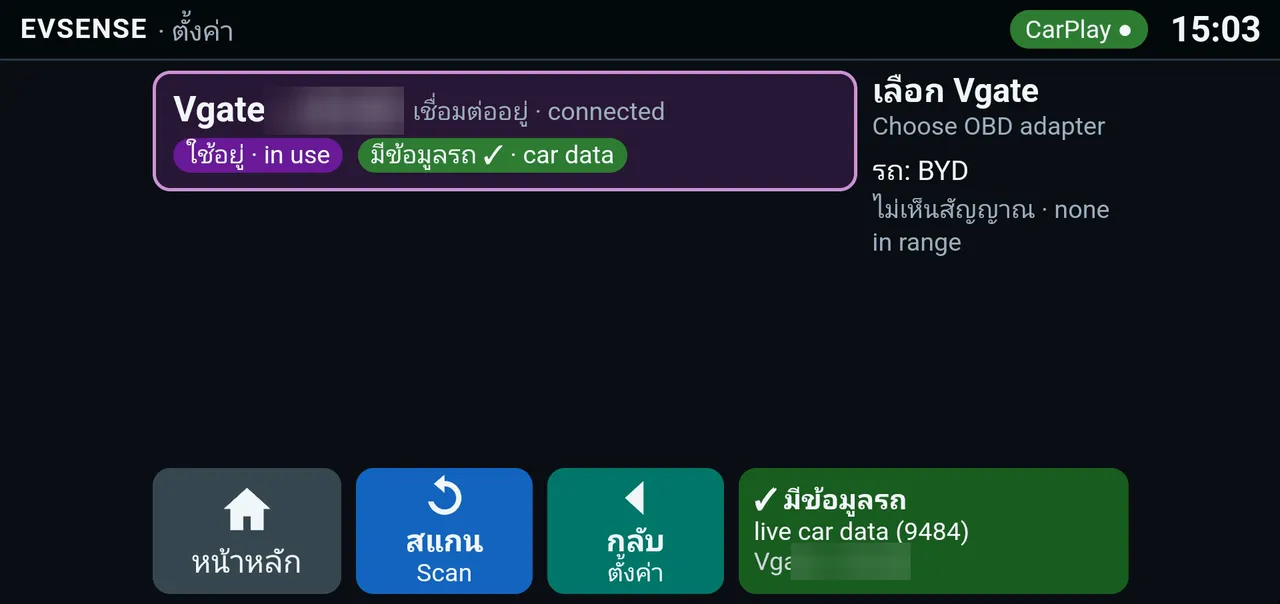
Real carThe end of the Vgate ID is blurred -
Set up Wi-Fi with your phone
The internet is used to check membership, send email reports and get updates. CarPlay, EV Gauge and danger alerts work even without internet. Go to Settings → Wi-Fi, tap Setup with phone, then follow the 3 steps on screen.
- Scan the QR code, or join the Wi-Fi using the name and password shown on screen.
- The setup page opens on your phone by itself. If it does not, open
http://setup.evsense/ - Choose the Wi-Fi network the box should use, then enter its password.
The box's temporary Wi-Fi turns off by itself when the countdown ends, or tap Close to turn it off right away.
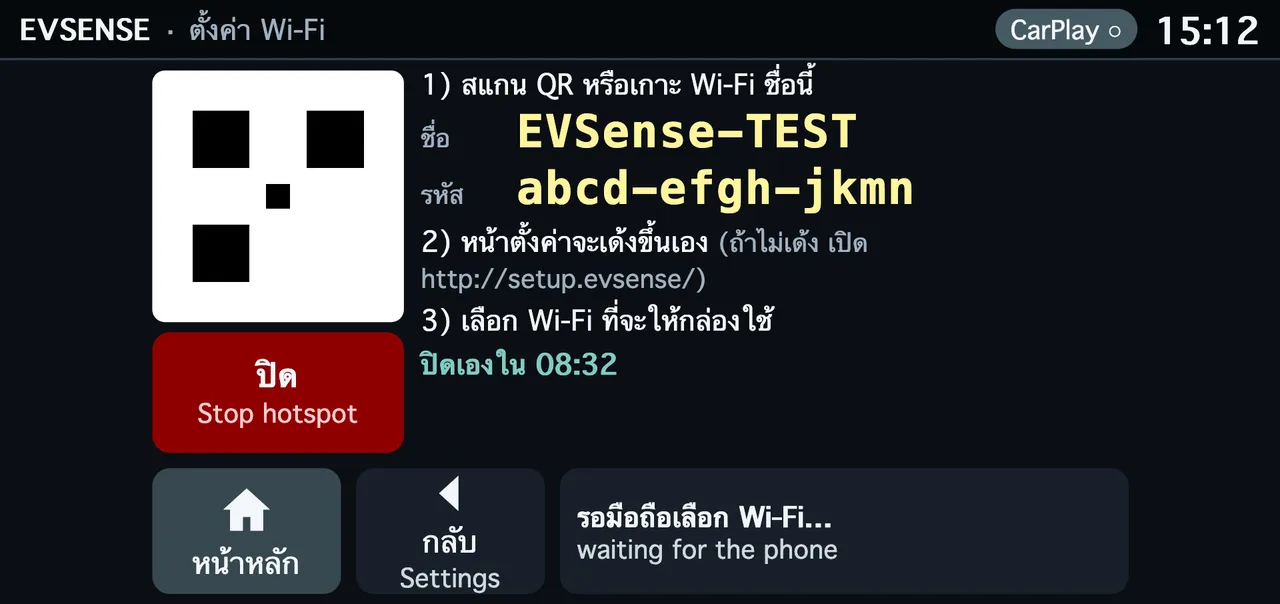
Mock-upThe name and password in the image are examples -
Choose a language and add report emails
Go to Settings → Language and choose Thai or English. Then go to Settings → Battery report, add up to 3 email addresses, and press the confirmation link in every email. You can skip this step for now.
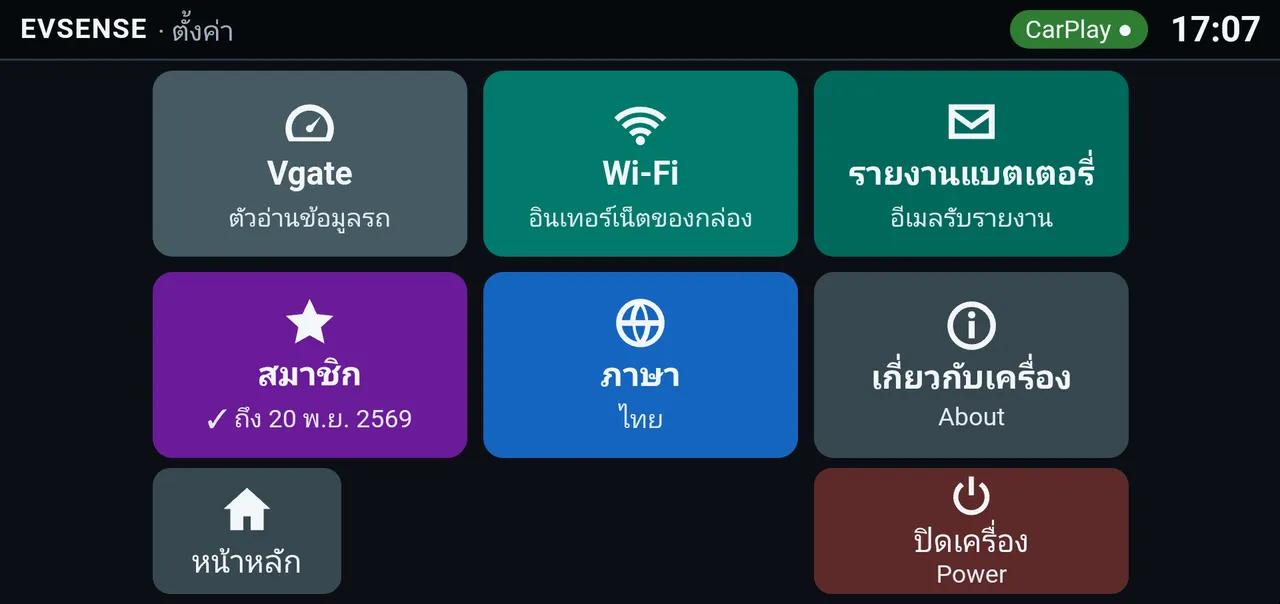
Current buildSettings menu. The Membership button also shows the expiry date
03 · Screens
Home screen
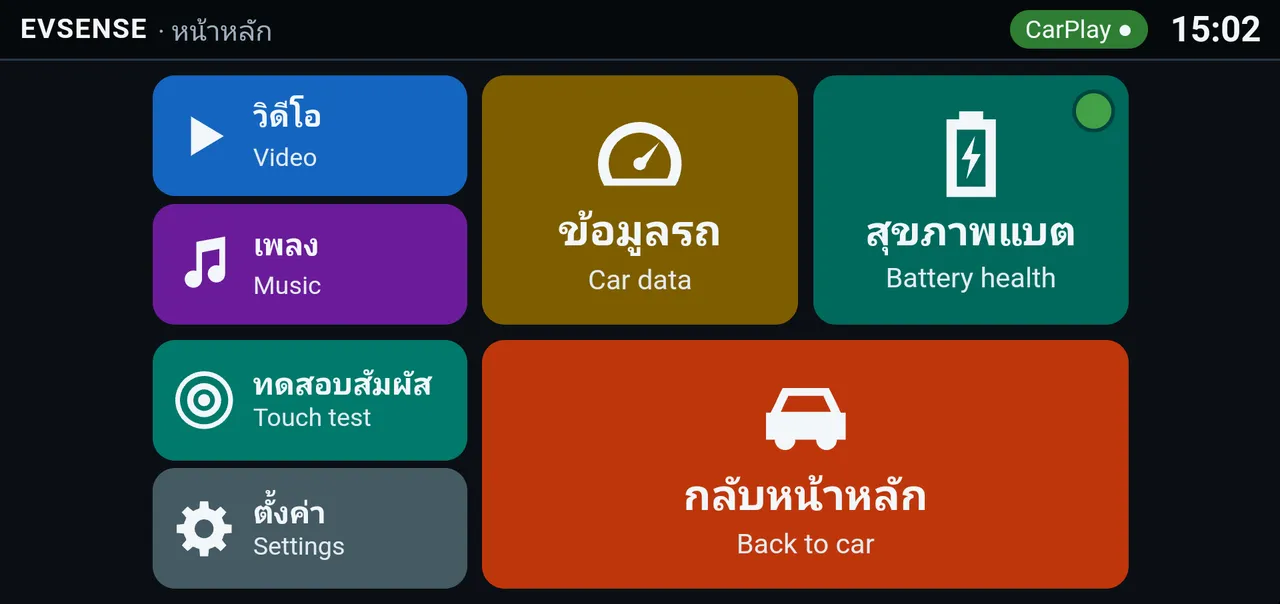
The first EVSense screen has buttons to every part. The top bar shows the page name, a CarPlay ● badge that means it is connected to the head unit, and the clock.
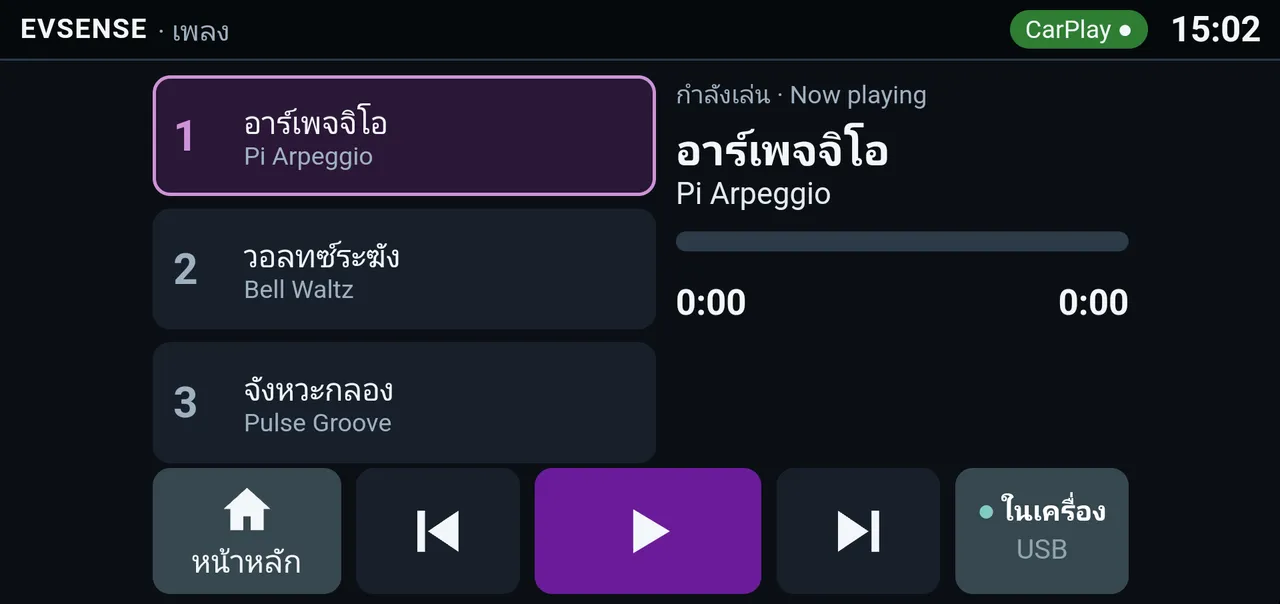
- Video · Music
- Play files stored on the box or on a USB flash drive
- Car data
- Opens EV Gauge with live EV data
- Battery health
- Opens EV Guardian. The colored dot at the top right shows the latest status
- Green: normal
- Yellow: good to know (level 1)
- Orange: should be checked (level 2)
- Flashing red: danger (level 3)
- Gray: no live data from the car yet, for example while the car is off
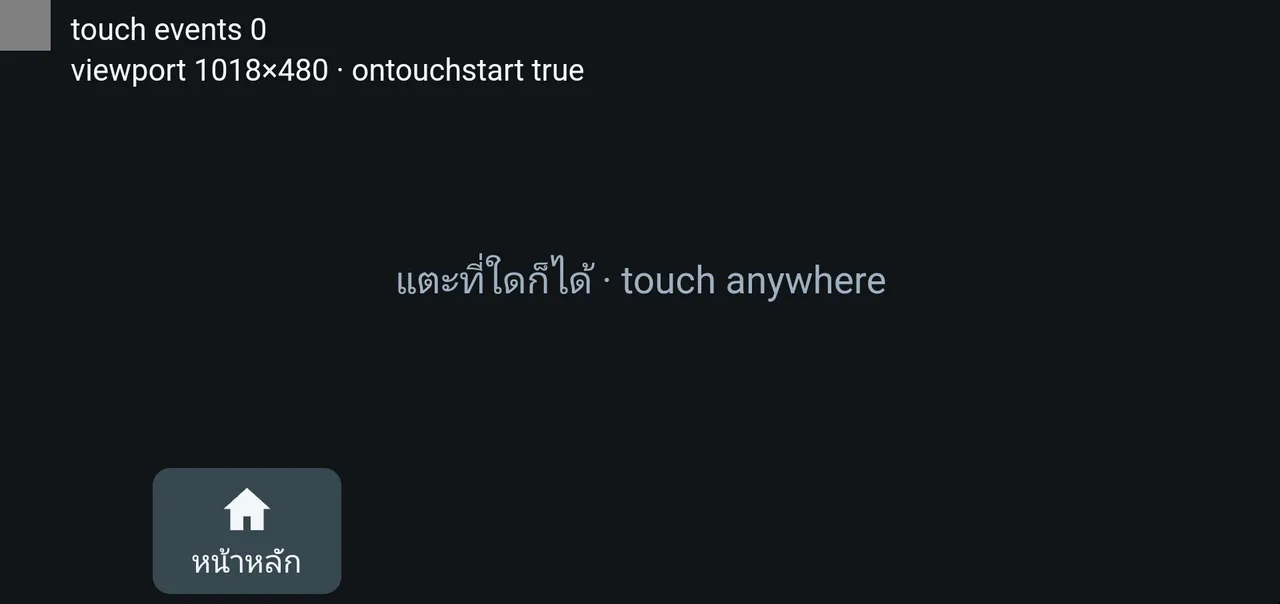
- Touch test
- Checks that every tap on the car screen reaches the box
- Settings
- Vgate · Wi-Fi · Report · Membership · Language · About · Power
- Back to car
- Returns to the head unit's own screen
What it's for
- See battery health from a single colored dot, without opening anything
- Go back to the normal car screen in one tap
04 · Free on every box
Car data · EV Gauge
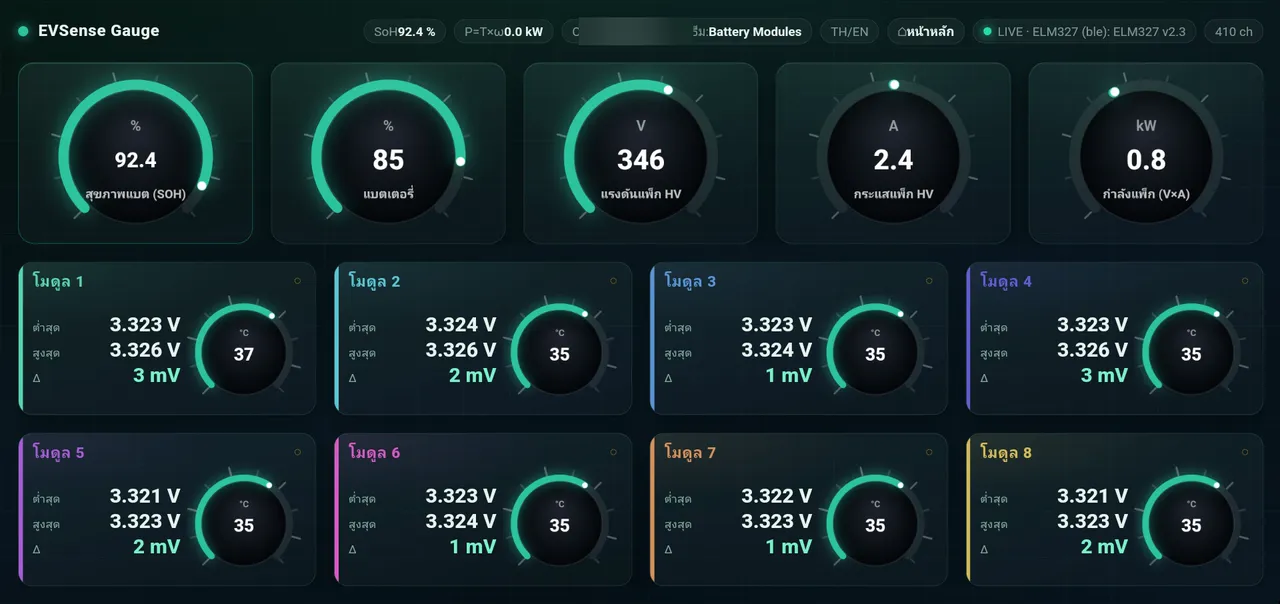
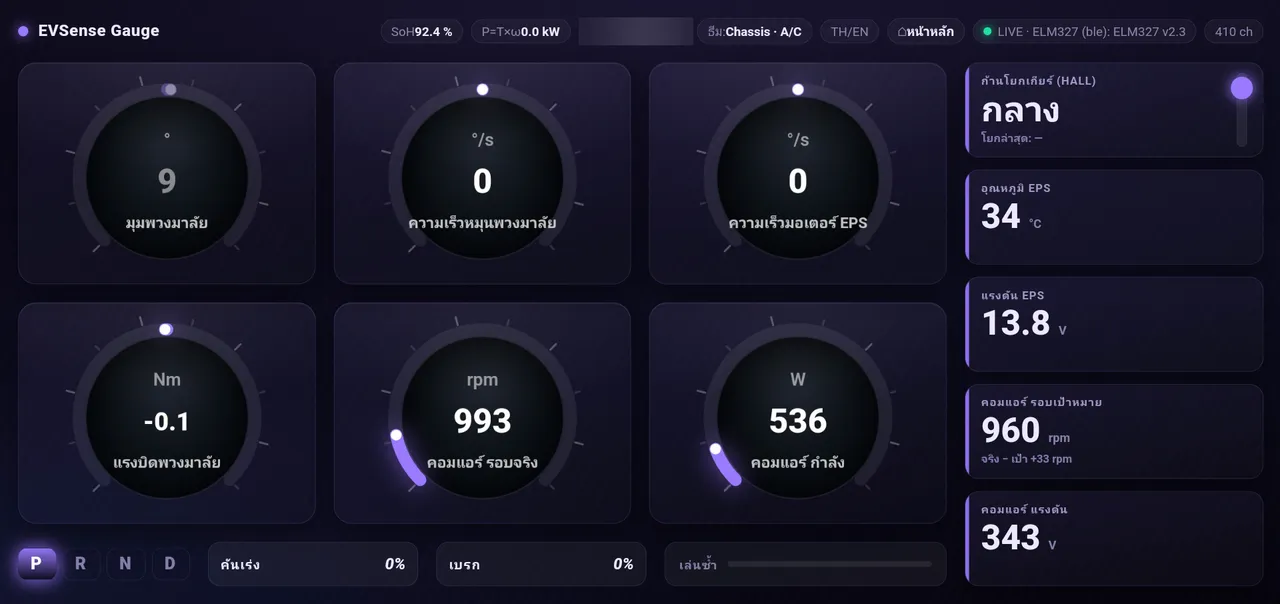
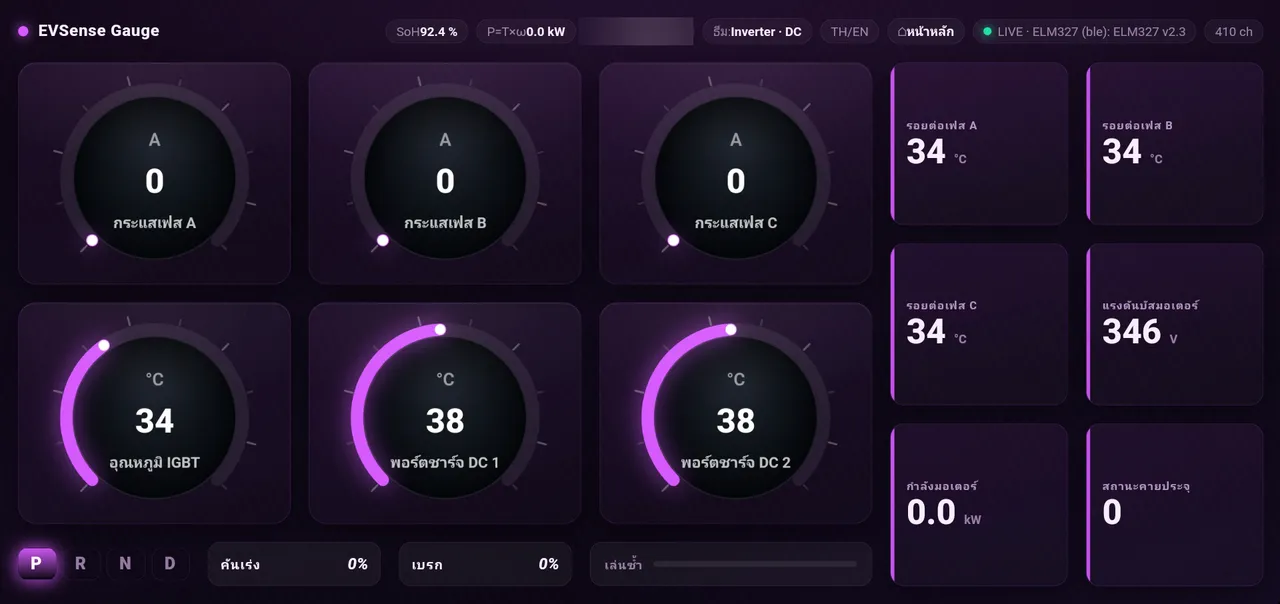
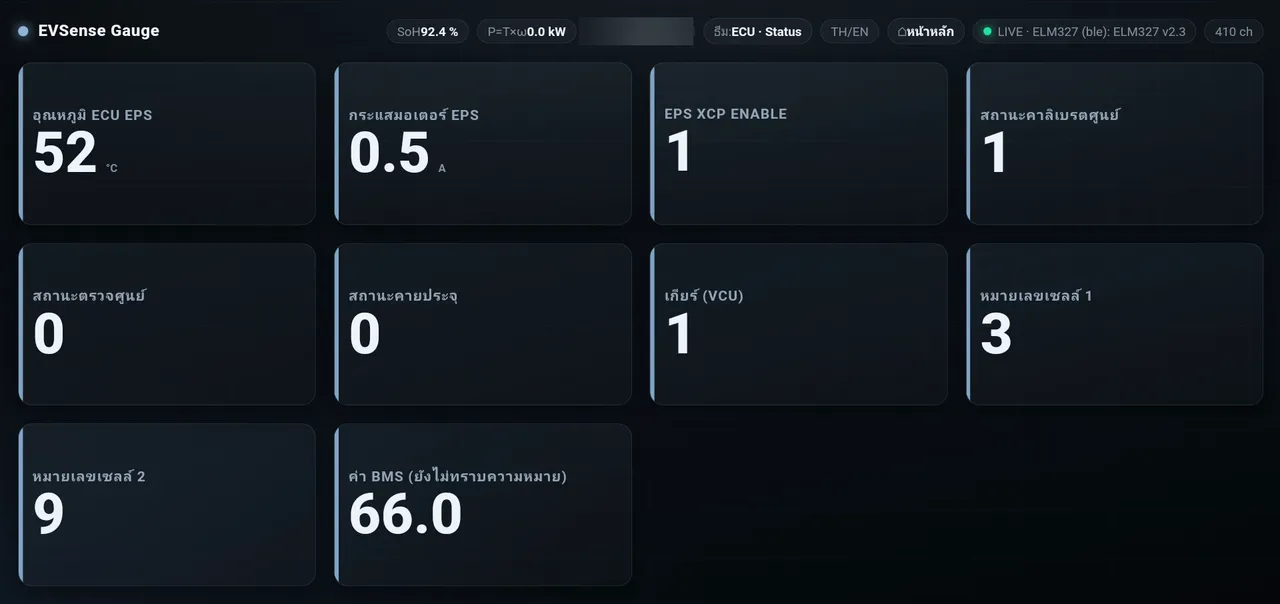
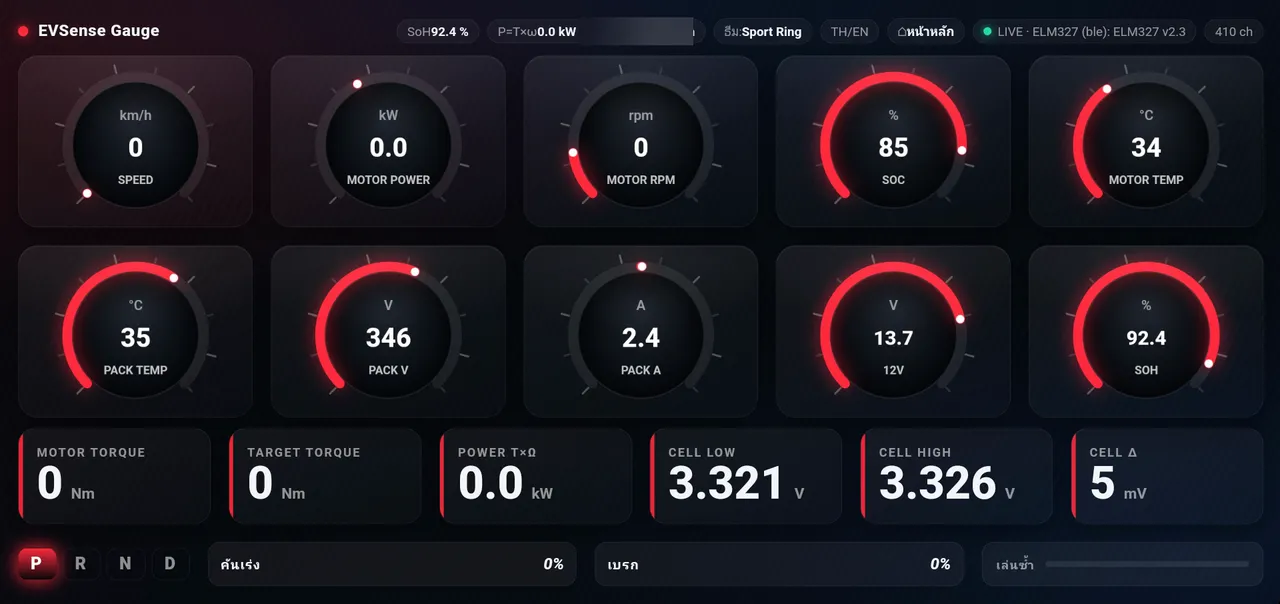
Live EV data gauges read from Vgate. Press the Theme button on the top bar to change the look. There are 9 themes to cycle through on the BYD Dolphin, and the box remembers the theme you chose.
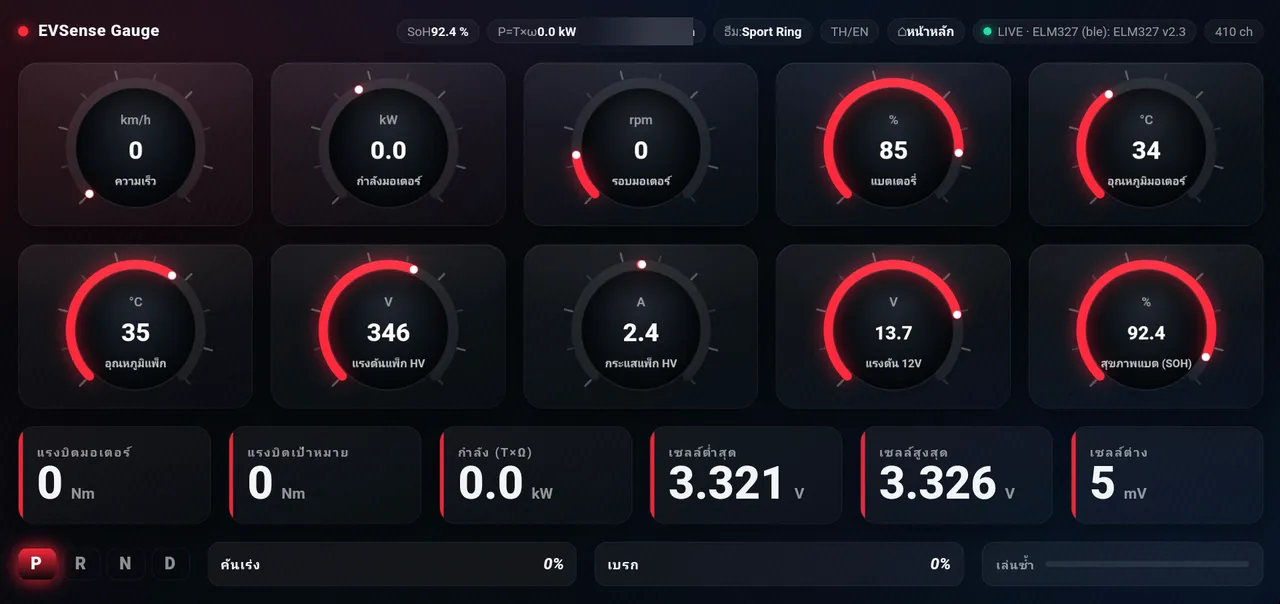
Top bar (all themes)
- SoH
- Battery health as reported by the car%
- P=T×ω
- Motor power, calculated from torque times speedkW
- ODO
- Total distancekm
- Theme · TH/EN
- Tap to change the theme, or switch the labels between Thai and English
- LIVE · ELM327
- Green light = reading live data from Vgate · The "ch" number is how many values are being read
Sport Ring: 10 rings
- Speed · Motor rpm
- km/h · rpm
- Motor power
- Positive value = driving powerkW
- Battery
- Battery charge remaining (SOC)%
- Motor · Pack temperature
- Temperature of the motor and the high-voltage battery°C
- HV pack voltage · current
- Total voltage of the high-voltage battery, and the current flowing in and outV · A
- 12V voltage
- The 12V battery that powers the car's electrical systemV
- Battery health (SOH)
- Capacity left compared with when new, as reported by the car%
- Bottom number row
- Actual torque vs torque requested by the system (Nm) · Power (kW) · Lowest / highest cell (V) · Cell difference (mV): the lower the better, meaning all cells are close to each other · Gear P R N D · Accelerator · Brake
What it's for
- See values the car's dashboard does not show, such as cell voltage, battery temperature and the 12V battery
- Watch cell difference and pack temperature during fast charging or long drives
Other themes
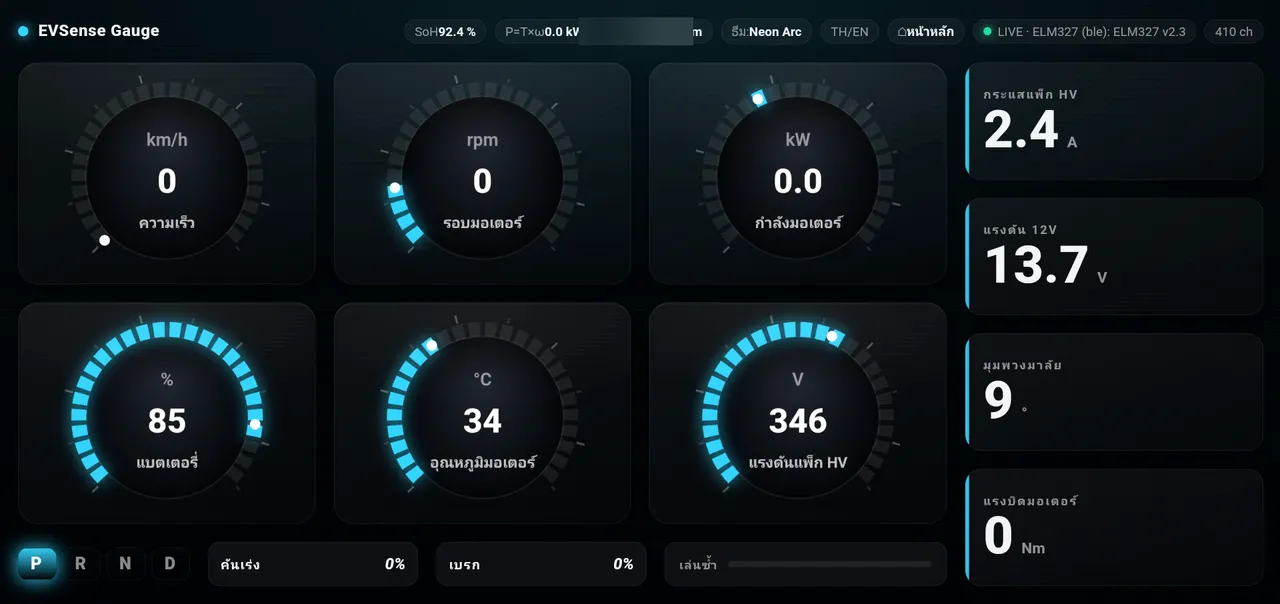
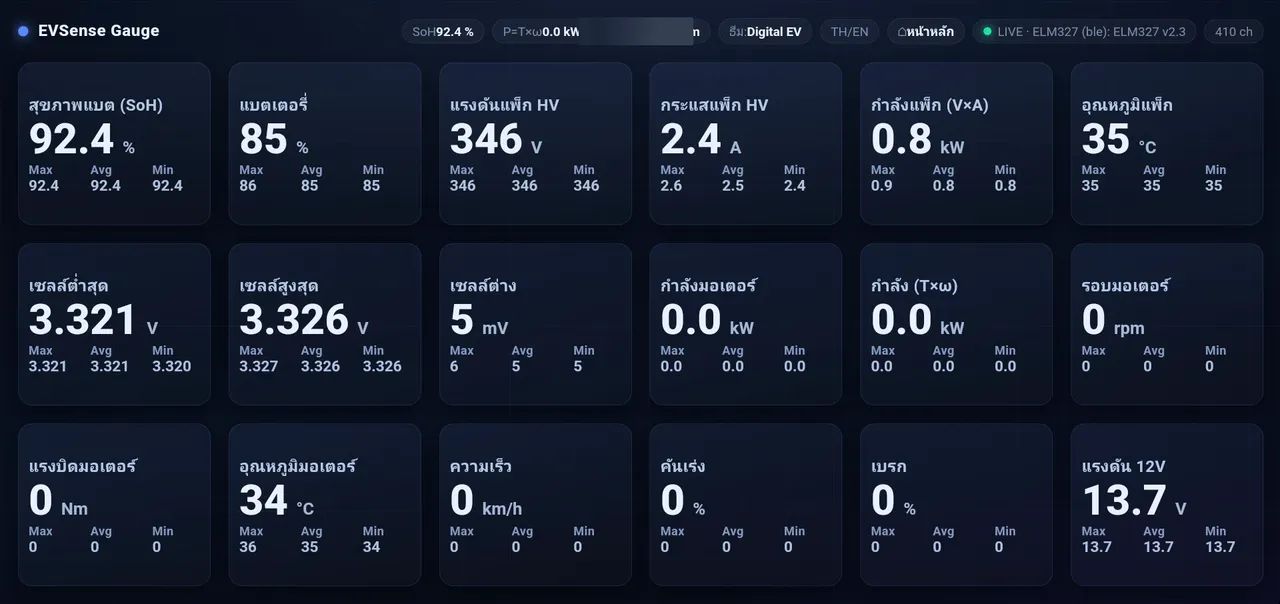
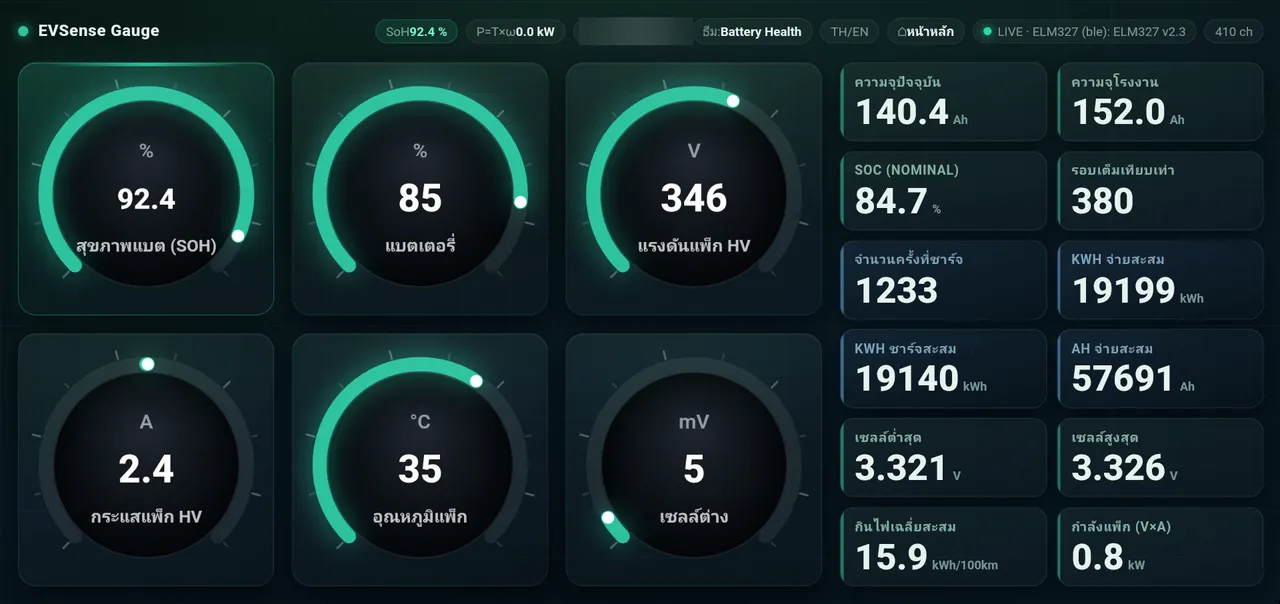
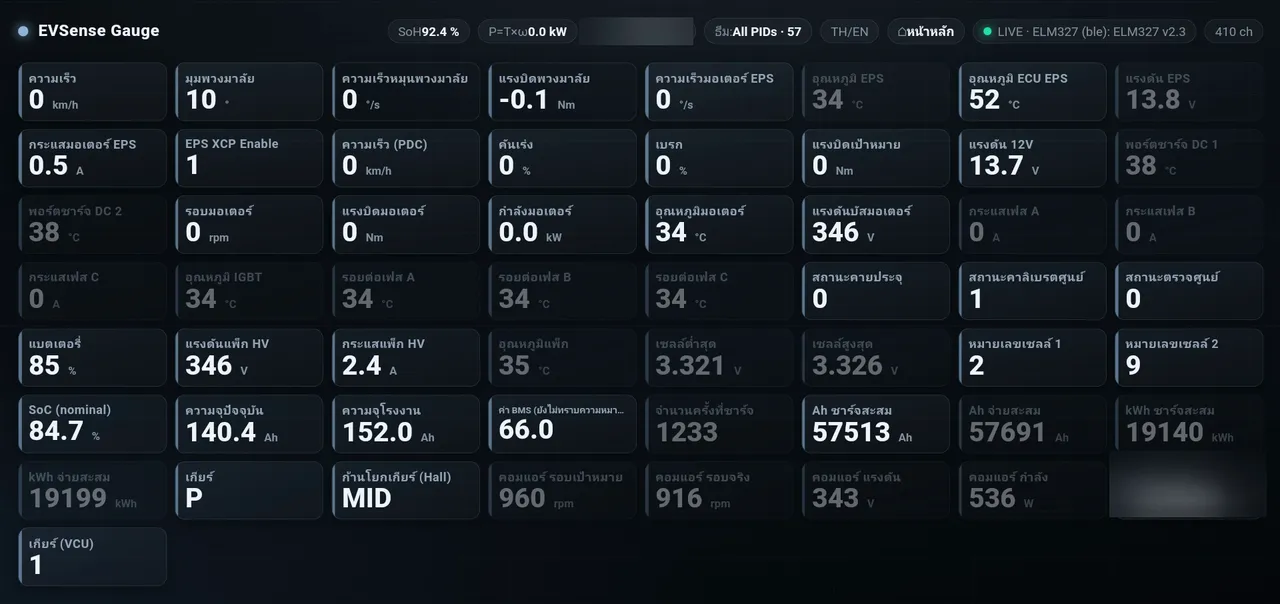
05 · Membership
Battery health · EV Guardian
EV Guardian keeps watch on the high-voltage battery the whole time you drive. It has 4 tabs: Driver · Battery health · Pack analysis · History. The top bar shows the car model, the battery type and a Live · … values badge when live data comes in. There is a button to turn this page's alert sound on or off, and a button back to the home screen.
▶ Watch EV Guardian deep dive on YouTube (in Thai, starts at 1:22)
Driver tab
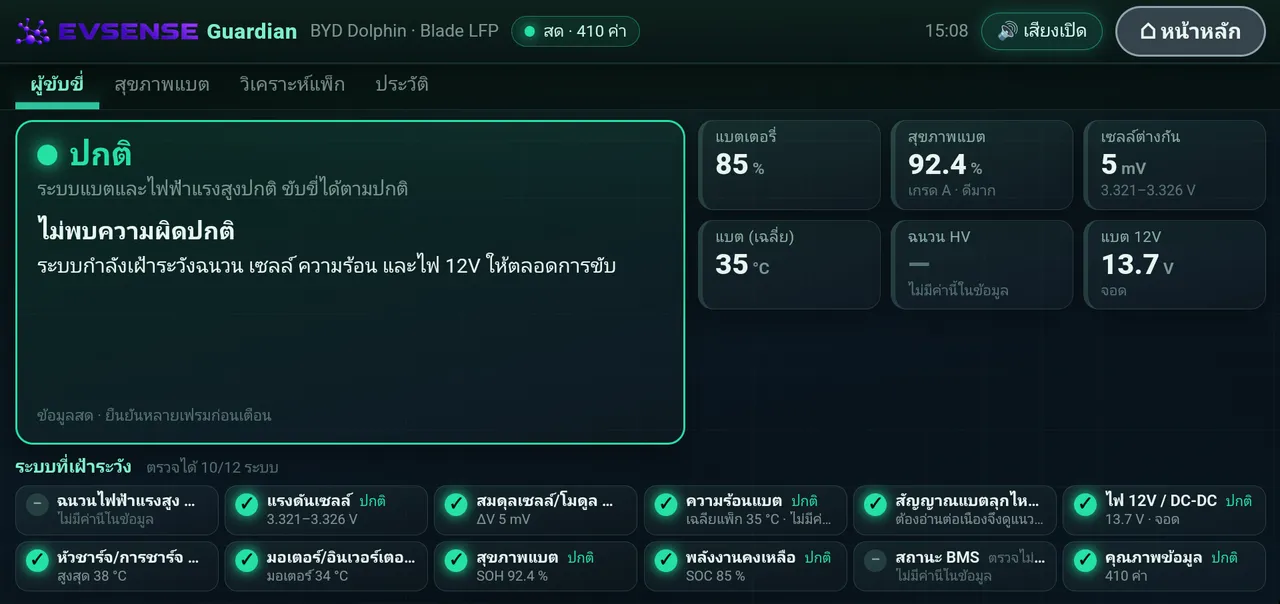
The shortest summary for the driver: is the battery OK right now?
- Large status card
- For example "Normal · No problems found". If something is found, it says what it is and what to do. The system confirms over several frames before it alerts, so a single glitch will not cause a false alert.
- Battery · Battery health
- Battery charge remaining, and SOH with a grade%
- Cell difference
- Difference between the highest and lowest cellmV
- Hottest battery · 12V
- Battery temperature, and 12V battery voltage°C · V
- HV insulation
- Insulation resistance between the high-voltage system and the car body. Shows "ไม่มีค่านี้ในข้อมูล (not in the data)" if that car model does not send this value.
- Monitored systems
- 12 systems, such as high-voltage insulation · Cell voltage · Cell balance · Battery heat · Battery fire signs · 12V power · Charging · Motor · BMS status · Data quality. It shows how many systems can be checked. A system that cannot be checked is one that the car model does not send data for.
What it's for
- Know at a glance whether you can keep driving as normal
- Know what the system is watching
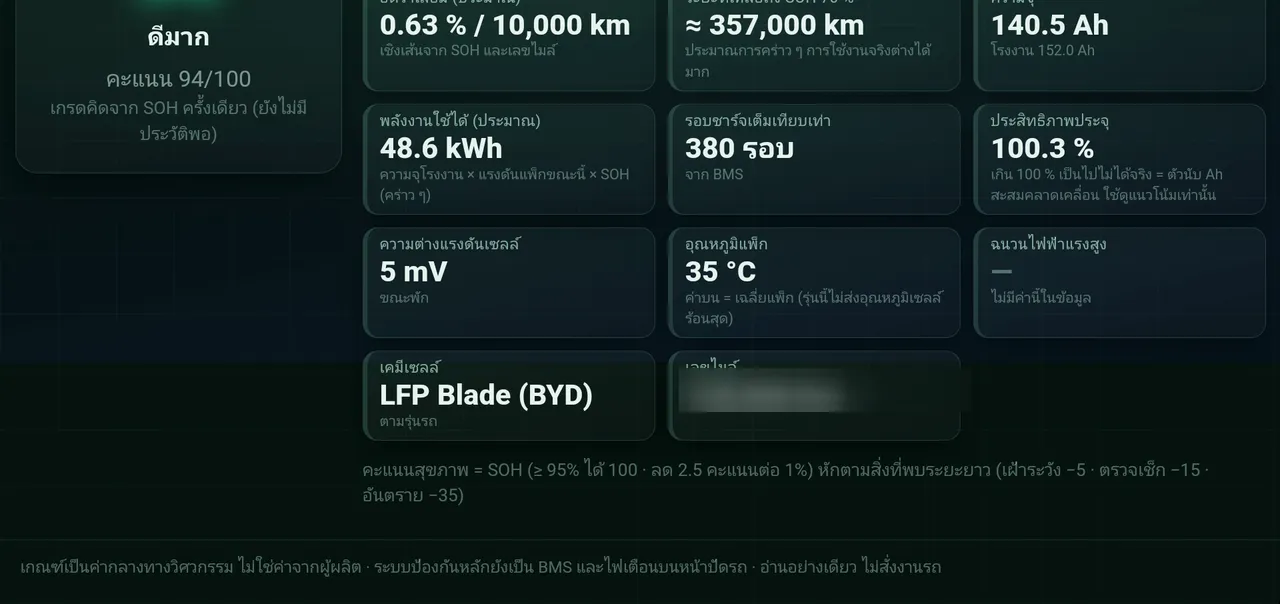
Battery health tab
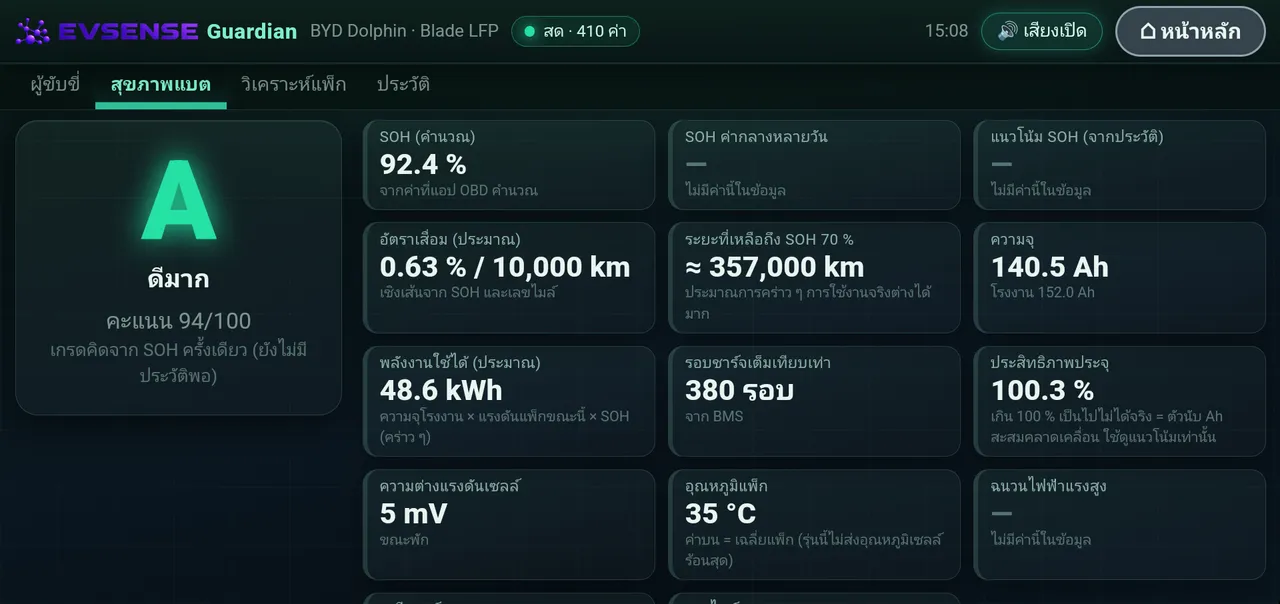
- Grade and score
- For example A · Very good · 94/100. The score is based on SOH: 95% or more scores 100, then it drops 2.5 points for every 1% of SOH lost, with deductions for long-term findings (watch −5 · check −15 · danger −35). If there is not enough history yet, the screen says the grade is based on a single SOH reading.
- SOH
- Battery health now, plus the multi-day median and trend once there is enough history%
- Degradation rate
- Linear estimate from SOH and odometer% / 10,000 km
- Distance to SOH 70%
- A rough estimate. Real use can vary a lotkm
- Capacity · Energy
- Current capacity vs factory (Ah), and estimated usable energy (kWh)
- Equivalent full cycles
- From the car's BMScycles
- Charge efficiency
- Over 100% means the running counters have drifted. Use it for trends only.
- Cell difference · Temperature
- At rest (mV), and pack temperature (°C). Some models only send an average.
- Cell chemistry · Odometer
- For example LFP Blade (BYD)
What it's for
- Know how much the battery has degraded, and whether it is degrading unusually fast
- Use it when talking to the service center, or when buying or selling a used car (it is monitoring data, not a battery health certificate)
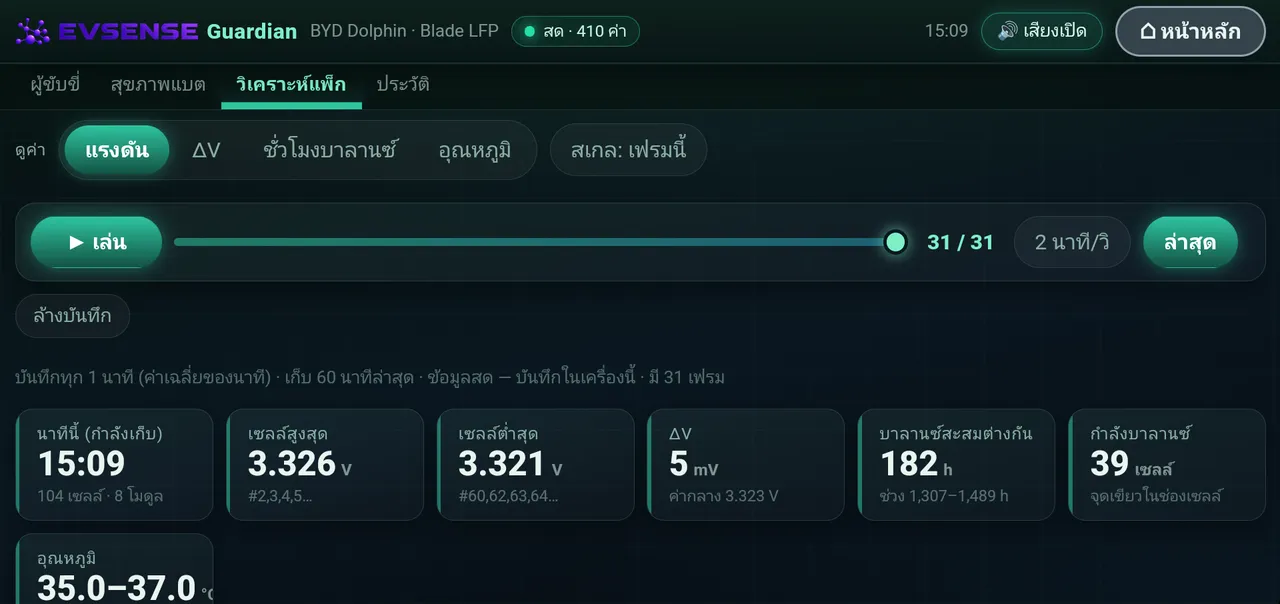
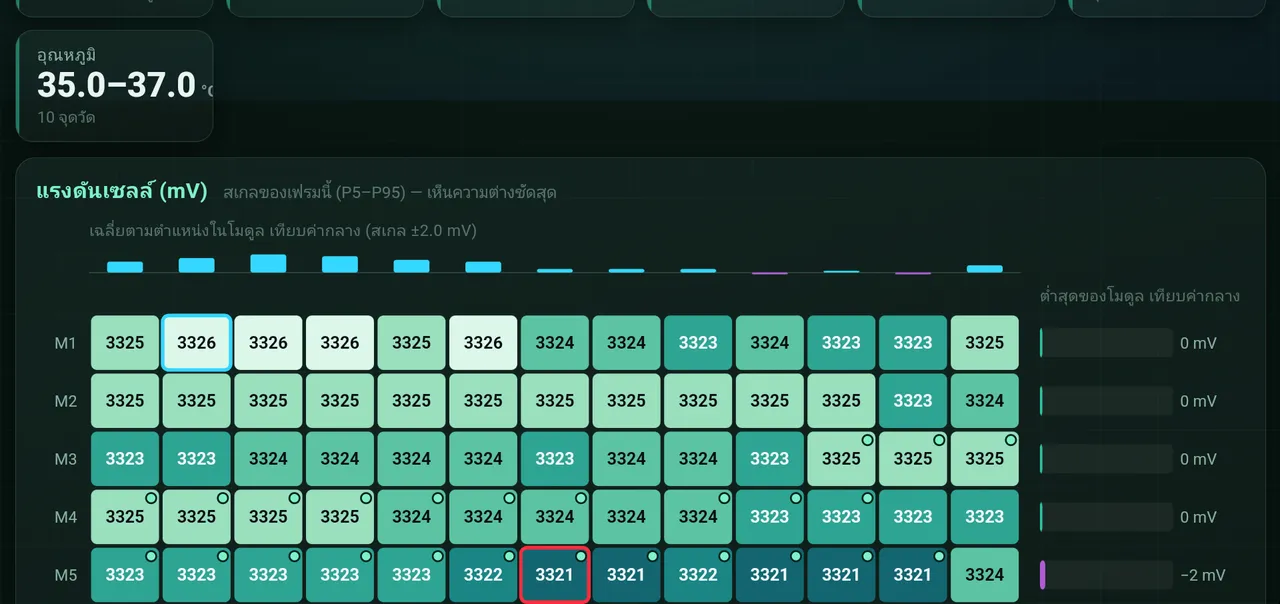
Pack analysis tab
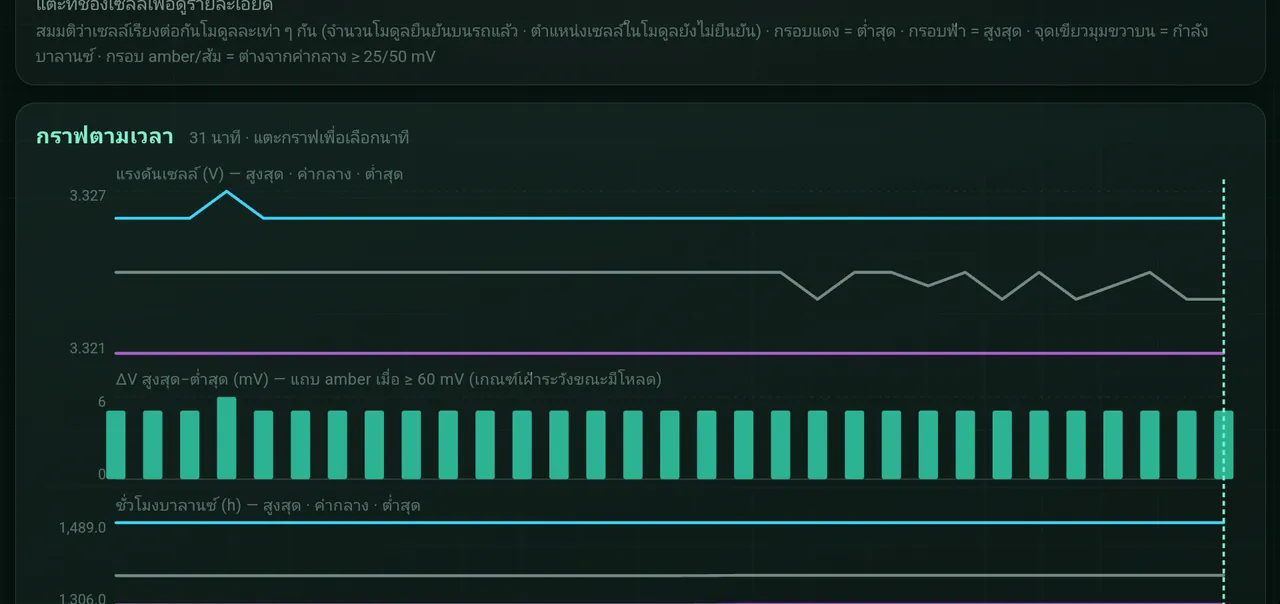
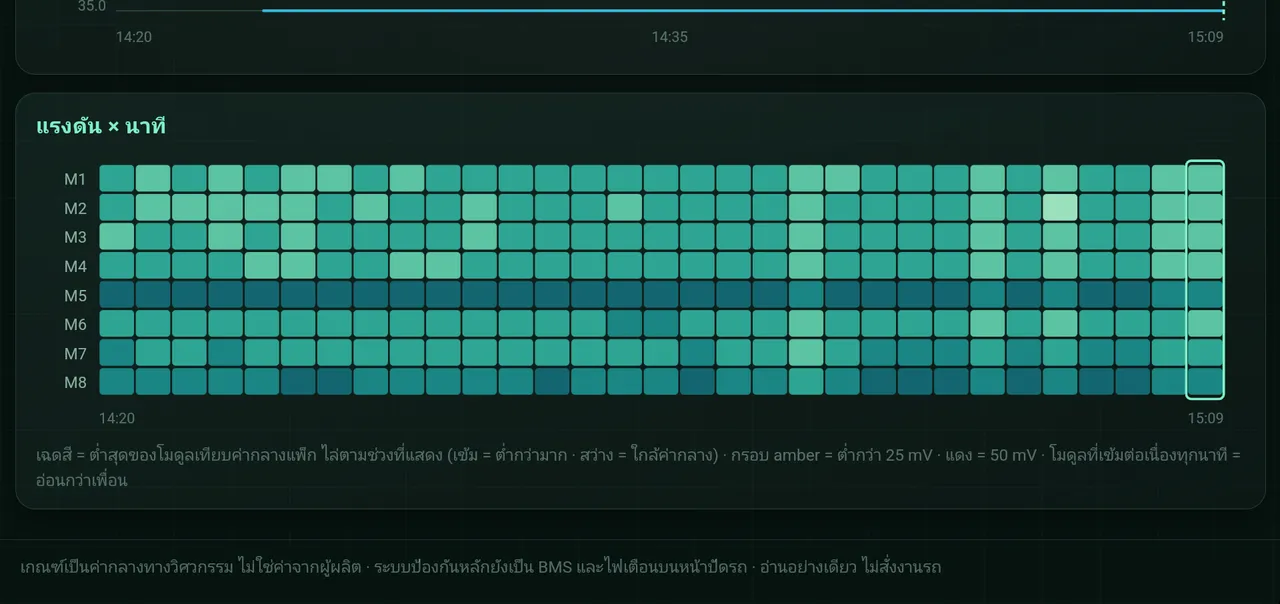
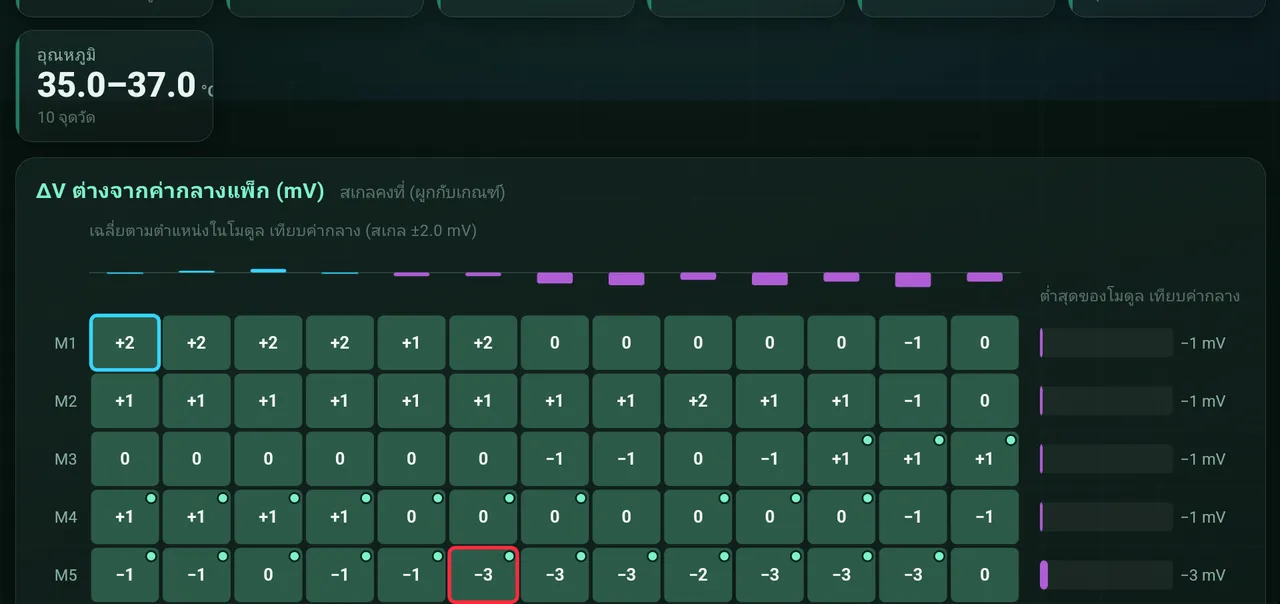
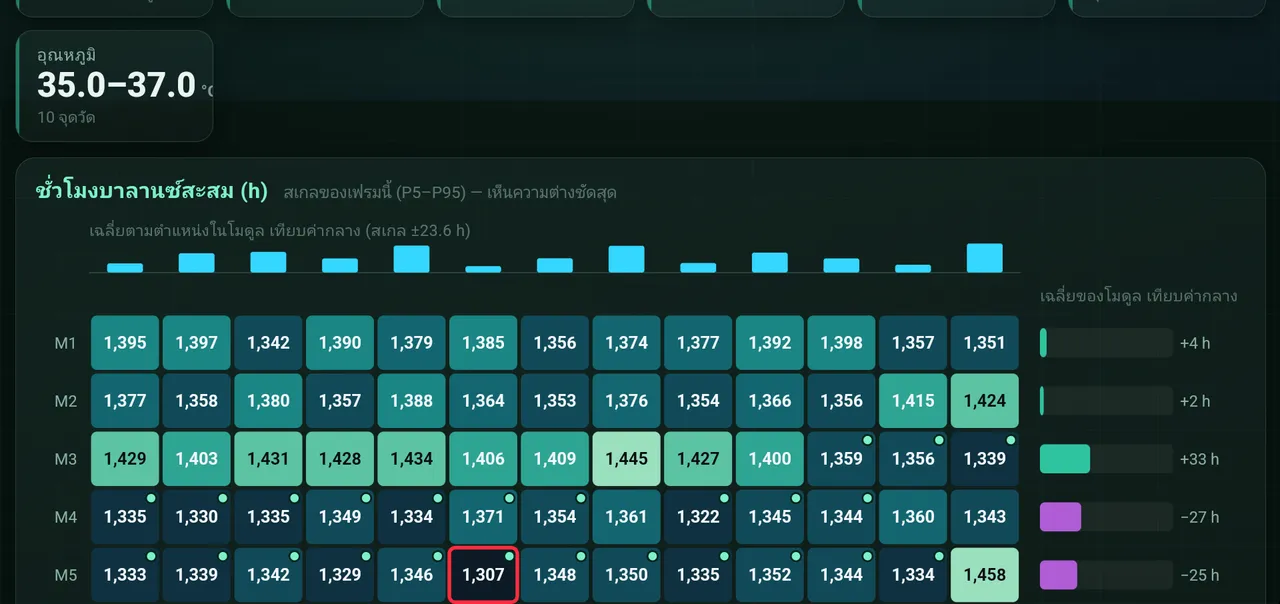
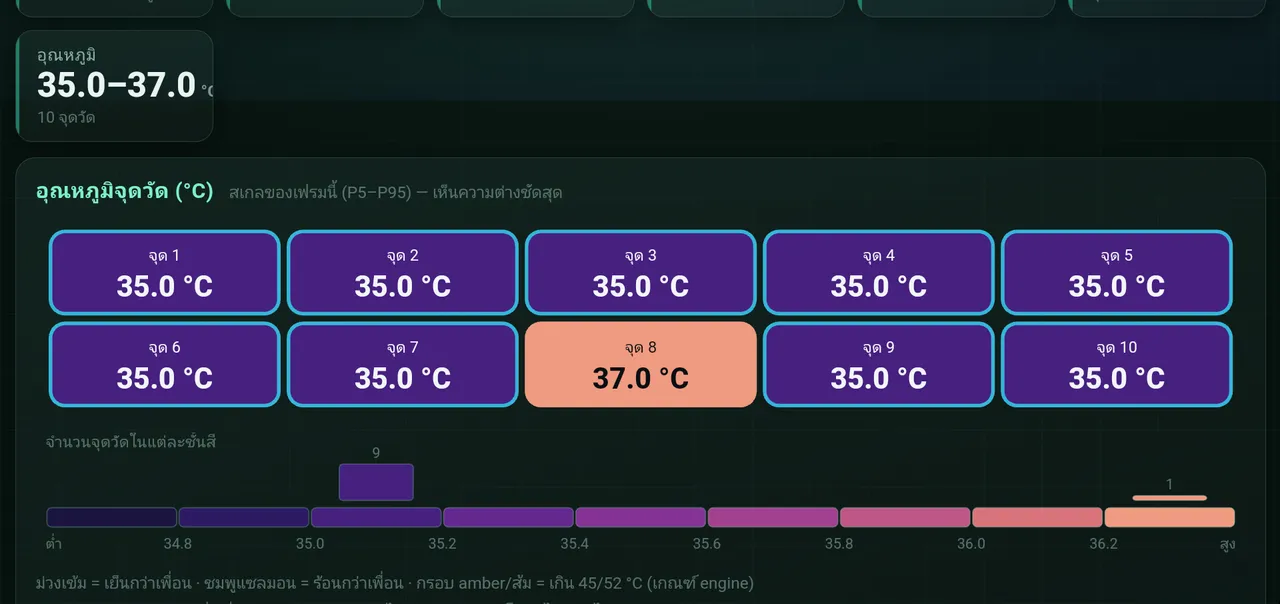
Look deep into the battery, down to each cell, on cars that send per-cell data · BYD Dolphin: 104 cells (8 modules × 13) · Balancing hours per cell · 10 temperature sensors
- View
- Choose from 4 views: Voltage of each cell · ΔV, how many mV each cell is from the pack median · Balancing hours the BMS has spent balancing that cell · Temperature from the sensors
- Scale: this frame
- Fits the color range to the frame you are viewing, so differences show as clearly as possible
- Replay bar
- Records every 1 minute and keeps the last 60 minutes on the box. Press ▶ Play to look back · Latest returns to now
- Summary cards
- Highest / lowest cell (V) with cell number · ΔV (mV) and median · Spread of total balancing (h) · Number of cells balancing now · Temperature range (°C)
- Cell map
- Rows M1–M8 = modules · Columns = cell position · Dark = low, bright = high · Red outline = lowest cell · Blue outline = highest · Green dot = balancing now · Amber / orange outline = ≥ 25 / 50 mV from the median · Tap a cell for details
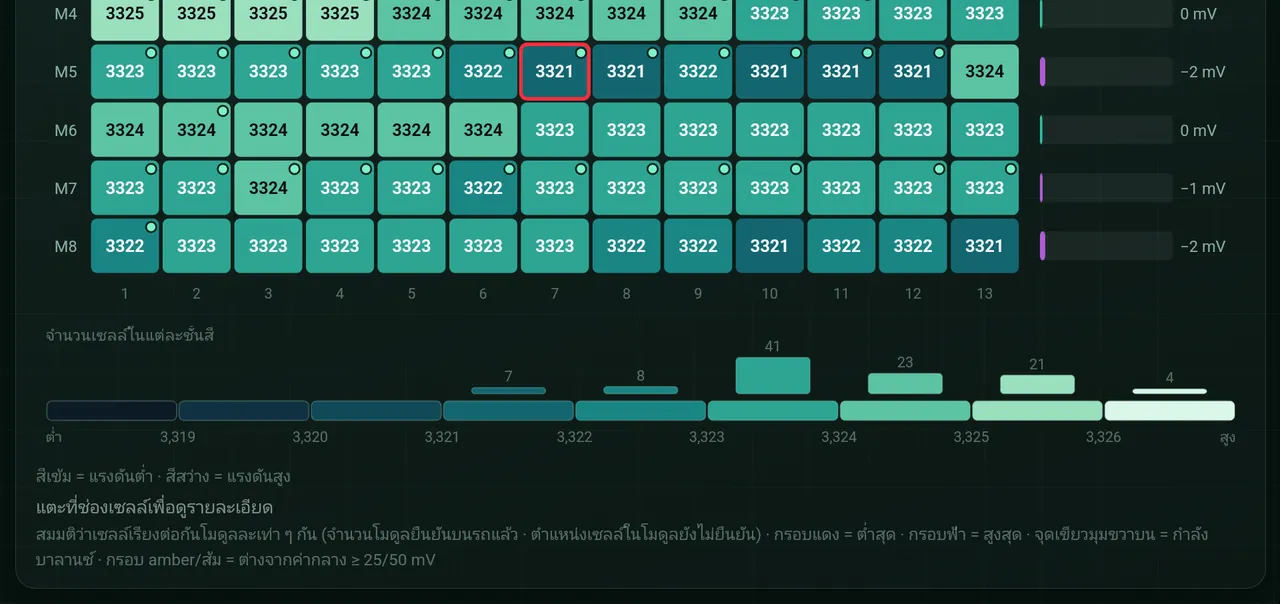
What it's for
- Find a cell or module that is starting to drift from the rest, which is often the first sign of a worn cell or poor balancing
- See whether heat is spread evenly
- Save screenshots to show the service center
History tab
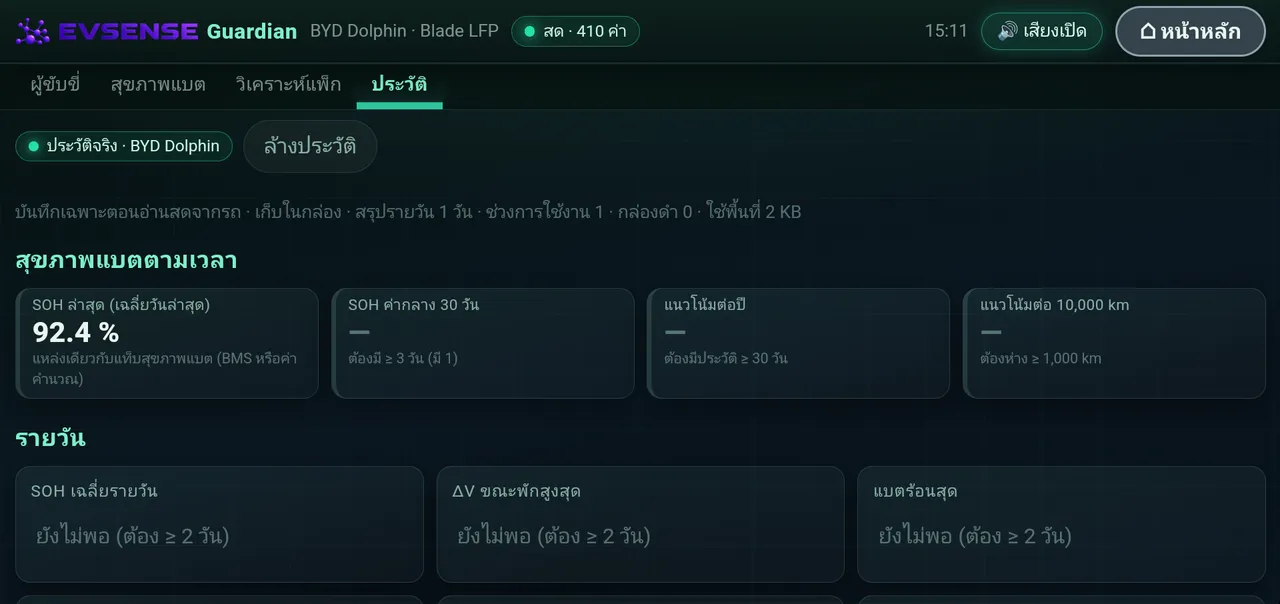
History is stored on the box and is recorded only while live data can be read from the car.
- Battery health over time
- Latest SOH · 30-day median (needs ≥ 3 days of data) · Trend per year (≥ 30 days) · Trend per 10,000 km (≥ 1,000 km driven apart)
- Daily
- Average SOH · ΔV at rest · Hottest battery · Lowest insulation · Lowest 12V · Distance (needs ≥ 2 days of data)
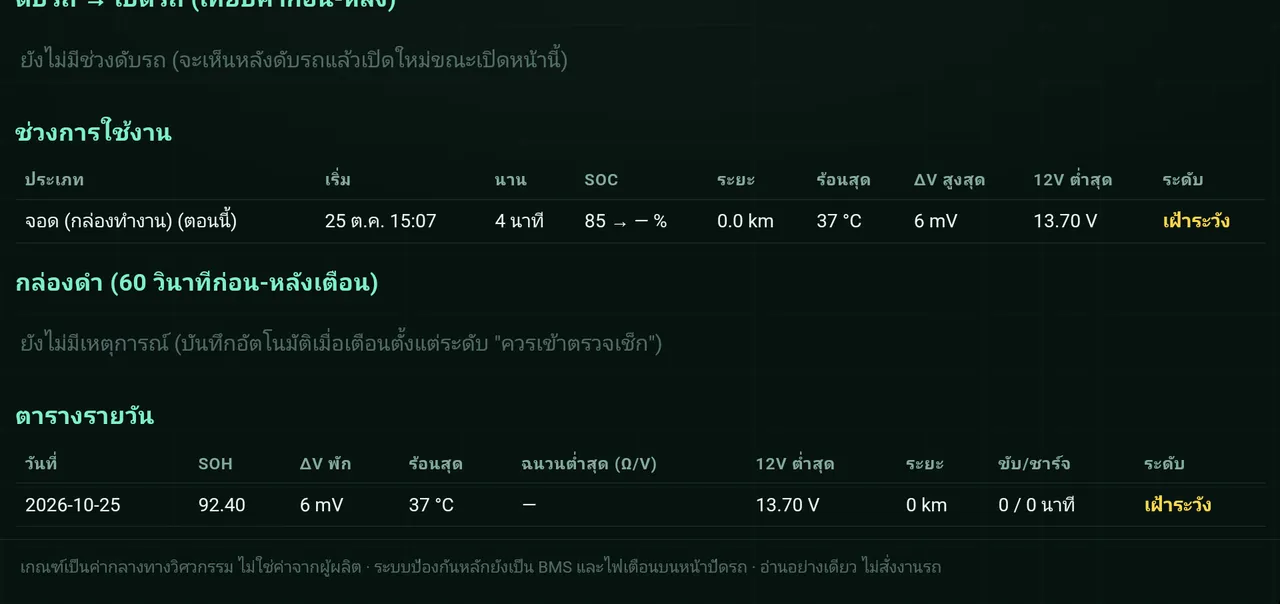
- Car off → Car on
- Compares values when the car was turned off with when it was turned on again, for example whether the battery dropped while parked
- Usage sessions
- Each session (parked · driving · charging) shows start time, duration, SOC start→end, distance, hottest, highest ΔV, lowest 12V and level
- Black box
- Automatically records values 60 seconds before and after an alert at the "should be checked" level or higher. Use it to tell the technician what happened.
- Daily table
- Date · SOH · ΔV at rest · Hottest · Insulation · 12V · Distance · Drive/charge time · Level
What it's for
- A single reading tells you little. A trend shows much more clearly whether the battery is degrading unusually fast
- Have a record to look back on if something happens
06 · Free on every box
Danger alerts
When a danger-level value is found, a red screen appears on top of every page, including the gauges, the battery health page and video, with an alert sound. This happens whether or not you are a member.
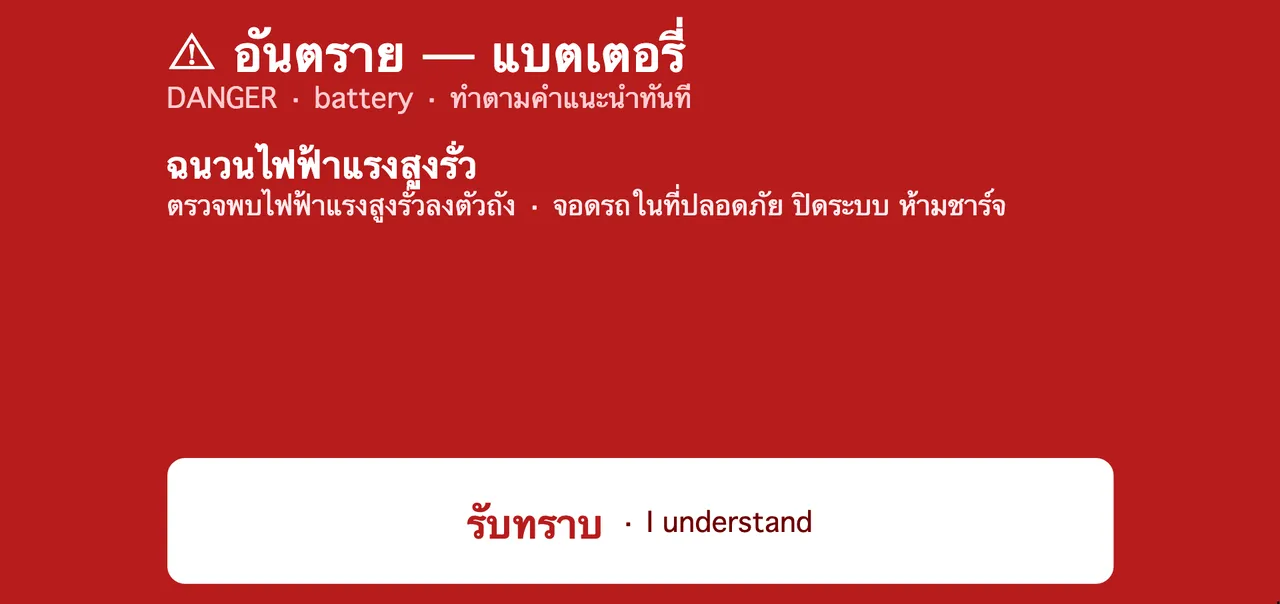
- Title
- "Danger · Battery · Follow the advice now"
- What was found · What to do
- For example: high-voltage insulation leak · Park somewhere safe, switch the system off, do not charge
- I understand
- Closes the alert. If it is still the same issue, the alert comes back after 5 minutes. A new issue shows right away.
| Level | Meaning | Who gets it |
|---|---|---|
| 1 · Good to know | A value is starting to leave its normal range. Nothing urgent to do yet, but keep an eye on it | Members |
| 2 · Should be checked | A confirmed problem was found. Book a visit to the service center · At most 1 alert email per day per issue | Members |
| 3 · Danger | May affect safety. Find a place to stop soon · Screen with sound · Members get an email every time | Free on every box |
- Stay calm, turn on the hazard lights, then calmly find a safe place to stop. Do not brake suddenly in the middle of the road.
- Once stopped, switch the car off. Check the warning lights on the car's dashboard as well.
- If there is smoke, a burning smell, unusual noise or unusual heat, get everyone out of the car, keep clear of it and call emergency services.
- Never try to open or repair the high-voltage battery yourself.
- Contact the car's service center and tell them which alert you saw. If you are not sure whether it is OK to keep driving, ask the service center first.
07 · Membership
Battery reports by email New
Set the emails that receive battery health reports, and send a report right away from the car screen. Go to Settings → Battery report.
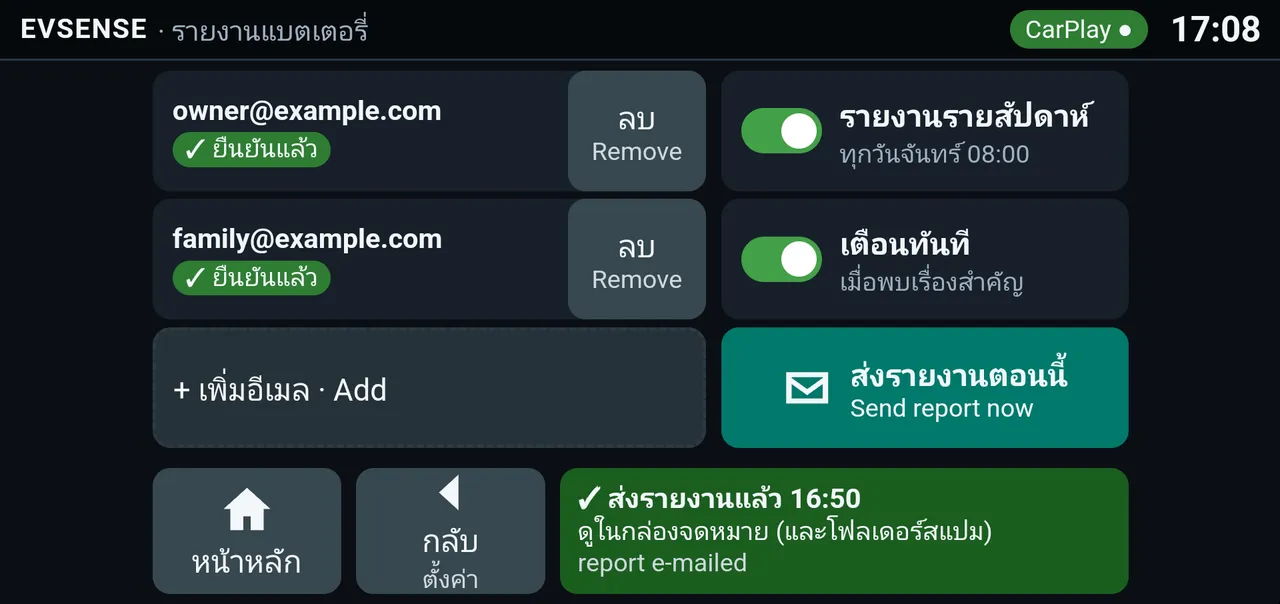
- Email list
- Up to 3 emails. Each email has a status badge
- ✓ ยืนยันแล้ว (confirmed) Reports can start
- ⏳ รอยืนยันในอีเมล (waiting for email confirmation) The confirmation link has not been pressed yet (the link works for 7 days)
- รอส่งขึ้นระบบ (waiting to upload) The box has no internet yet
- ยกเลิกรับแล้ว (unsubscribed) · ✗ ส่งไม่ถึง ตรวจที่อยู่ (not delivered, check the address) Check the address again
- Delete
- On the first tap the button shows "แตะอีกครั้ง เพื่อลบ (tap again to delete)". Tap again to confirm.
- + Add email
- Opens the email entry screen. See the steps with images in Adding a report email, step by step
- Weekly report
- Sent every Monday at 08:00 (Thailand time) with a PDF
- Instant alerts
- Sends an email when an important confirmed issue is found (level 2 or higher)
- Send report nowNew
- On the first tap the button shows "แตะอีกครั้งเพื่อส่ง (tap again to send)". Tap again to confirm. The server builds the report from the data the box has already uploaded, so you do not have to wait the full 7 days. The email subject shows the actual data period, for example "From 5 minutes of data (25 Oct 16:04–16:09)" · You can send once every 10 minutes · You need at least 1 confirmed email, and the box must be online
- Bottom status box
- Shows the latest result, for example "✓ 16:50 · report e-mailed" (the Thai line under it reminds you to check your inbox and spam folder)
Adding a report email, step by step
-
Tap "+ Add email"
On the Settings → Battery report screen, tap + Add email (shown while you have fewer than 3 emails). A keyboard appears on the car screen. Type the email into the box.
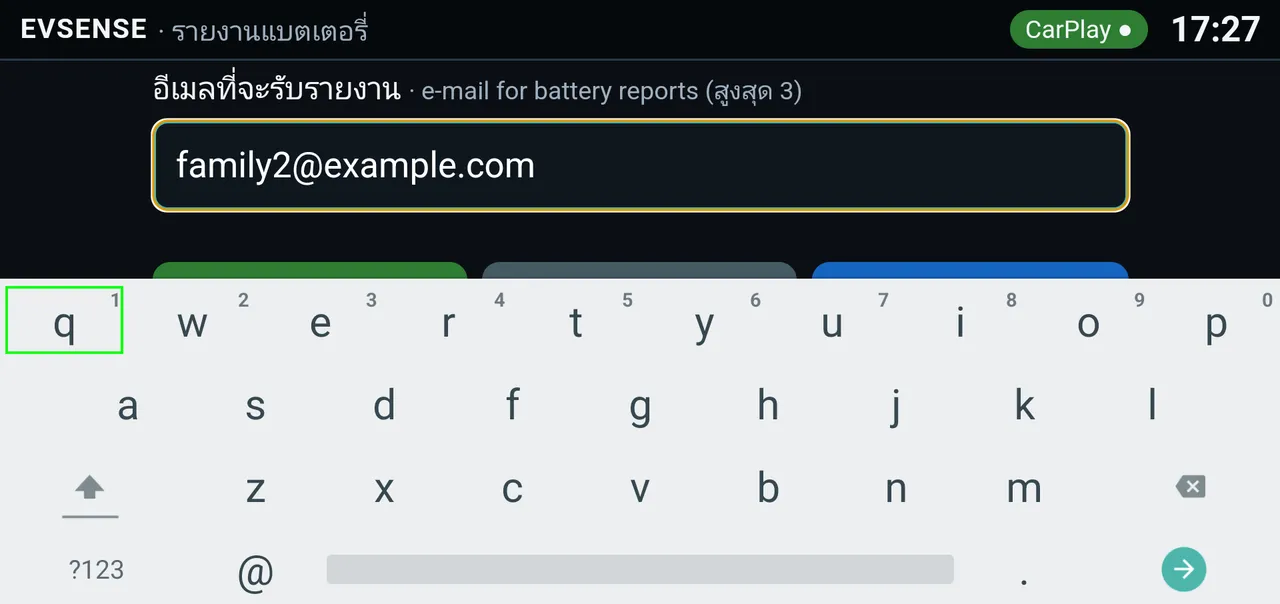
Current buildType the email with the on-screen keyboard · The email is an example -
Tap "Save"
Close the keyboard and you will see the Save and Cancel buttons. Tap Save. The email appears in the list with the badge "⏳ รอยืนยันในอีเมล (waiting for email confirmation)". The Enter on phone button is not available yet.
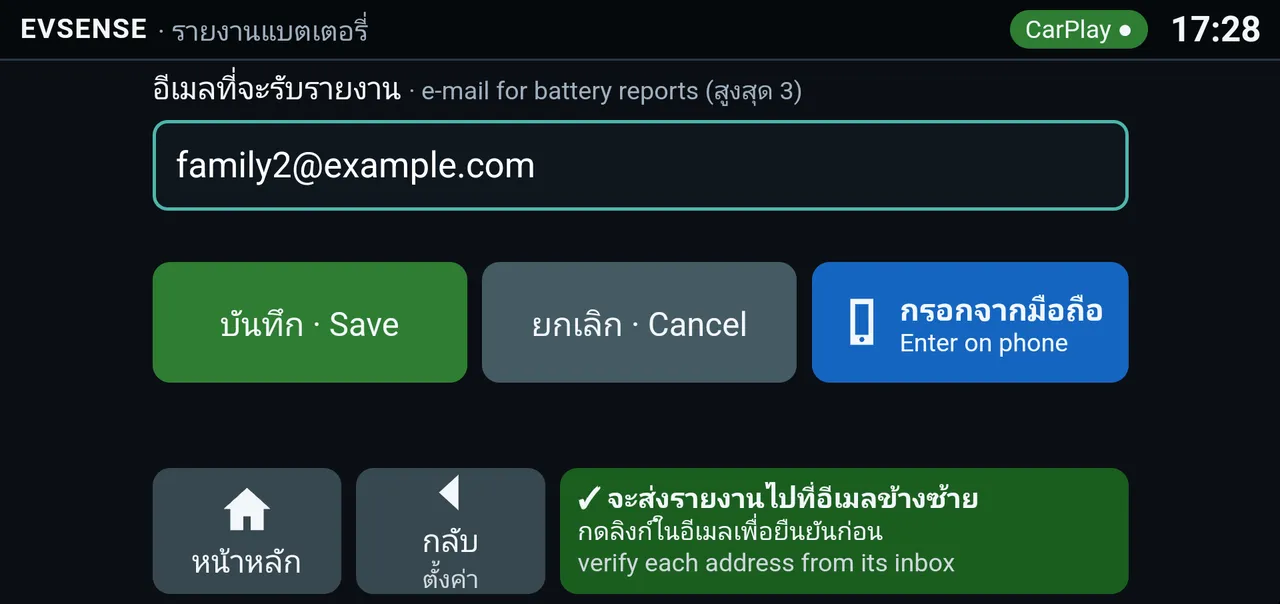
Current buildSave, Cancel and Fill in from phone buttons -
If the format is wrong
The screen shows "รูปแบบอีเมลไม่ถูกต้อง (invalid email format)" under the box, and nothing is saved yet. Complete the address, for example it needs .com or .co.th, then tap Save again.
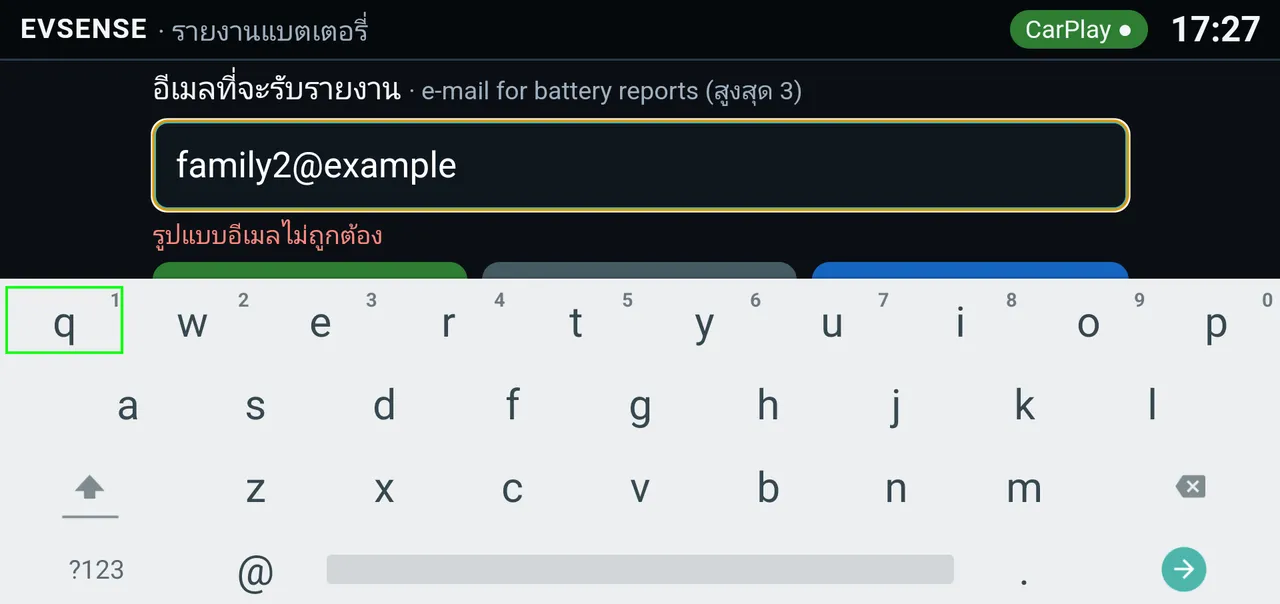
Current buildThe email is missing its domain ending -
Confirm in the email
The system sends a "Confirm your e-mail for EVSense reports" message to that address. Open it and press the Confirm email button within 7 days (if you do not see it, check your spam folder). Once the box is online, the badge in the list changes to ✓ ยืนยันแล้ว (confirmed). You can add up to 3 emails, and each one must be confirmed by its owner.
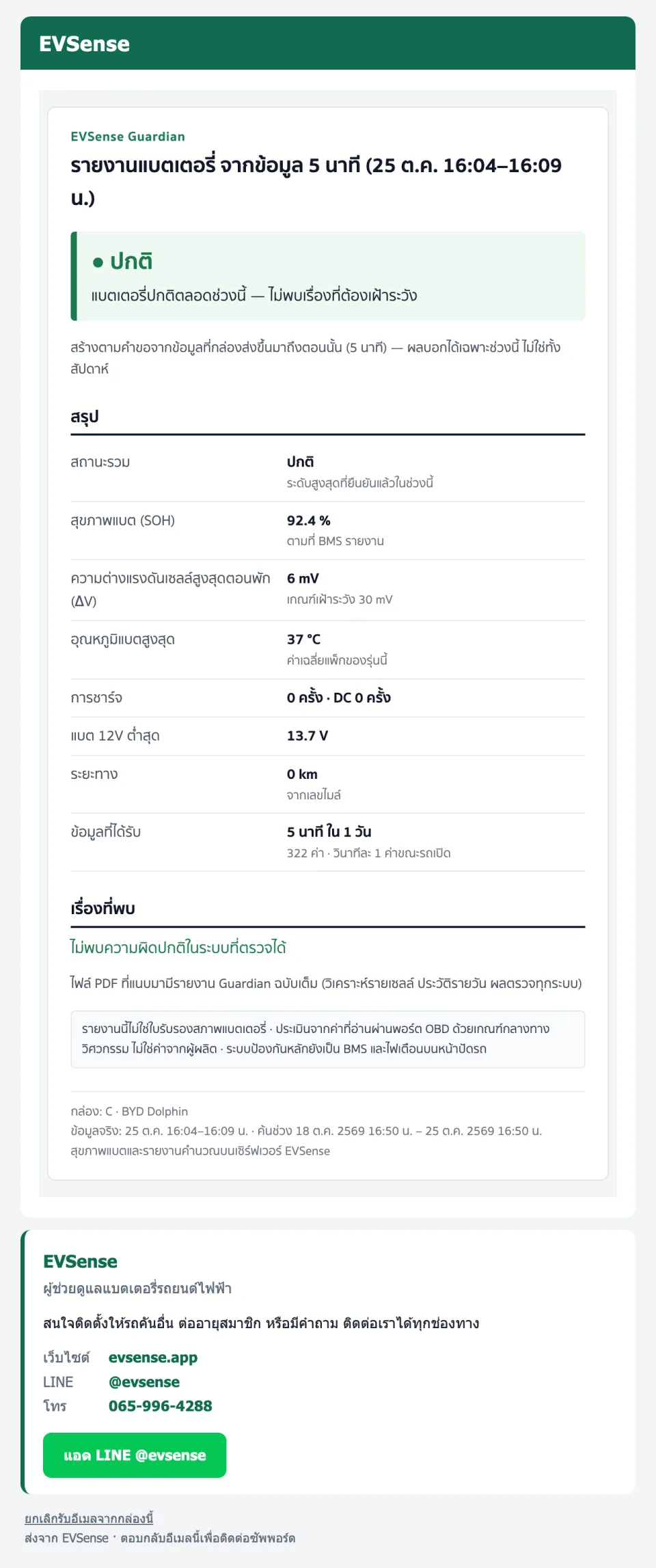
What's in the report email
- Short summary
- Overall status · SOH · Cell voltage difference (ΔV) · Highest temperature · Number of charges · Lowest 12V · Distance · Amount of data received
- Findings
- Problems the system detected during that period
- Full PDF
- Attached: per-cell analysis, daily history, results for every system
- Contact cardNew
- Website · LINE @evsense · Phone, with an Add LINE button
- Unsubscribe
- A link in every email. It works right away, with no login needed
What it's for
- Get a battery health summary every week without checking it yourself
- Send a report to yourself or your family before taking the car to the service center
- Find out right away by email when something important is found, even when you are away from the car
08 · Settings
Membership · Language · About
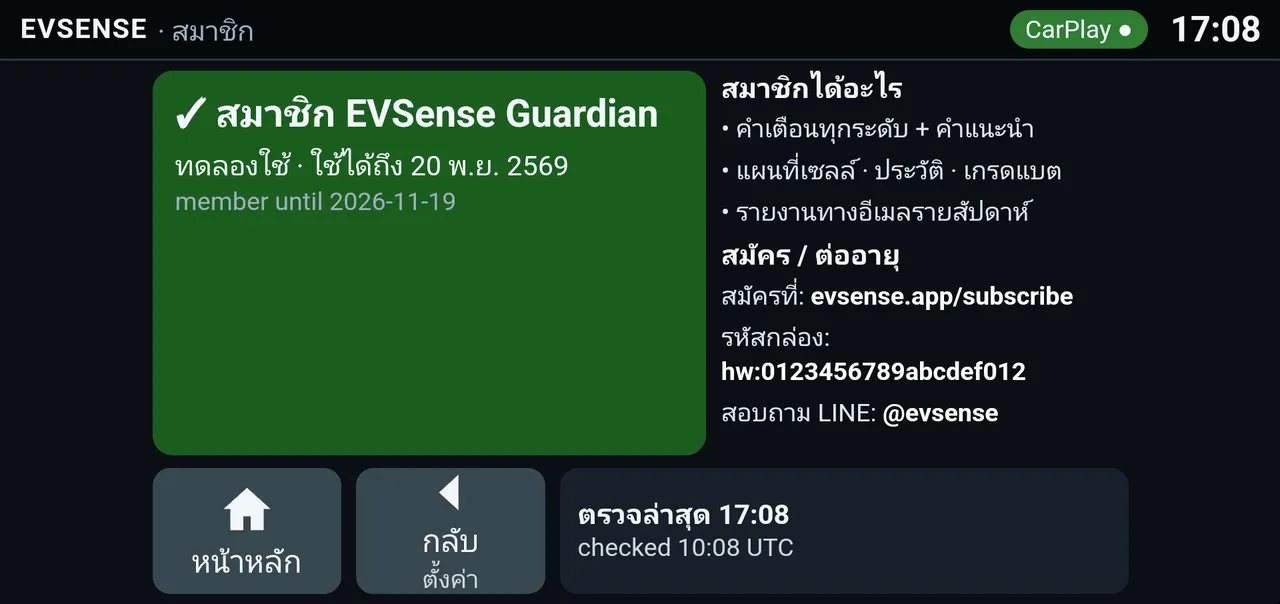
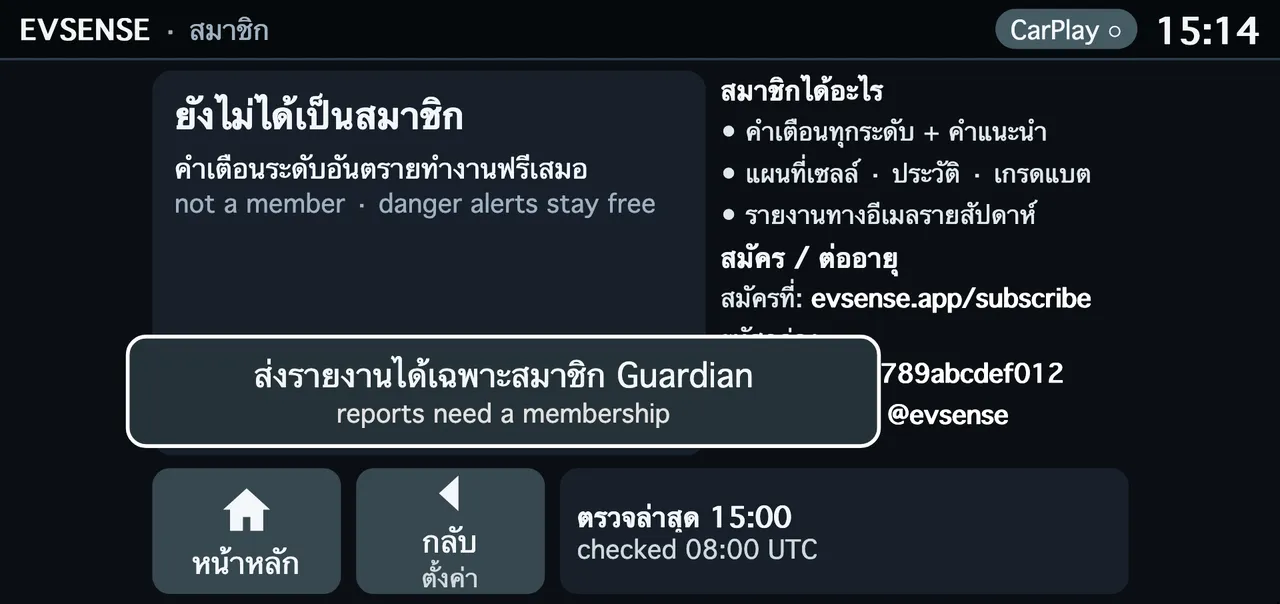
Membership
- Status card
- Member / trial until … · Not a member yet (danger alerts still work for free) · Internet needed (offline for more than 14 days; connect to Wi-Fi and access comes back by itself) · Expired
- What members get
- Alerts at every level with advice · Cell map · History · Battery grade · Weekly email reports
- Subscribe / Renew
- At evsense.app/subscribe with the box ID shown on screen. Pay by bank transfer or PromptPay. An admin turns on your access, and it takes effect within a few minutes once the box is online.
- Last checked
- The last time the box checked its membership with the server
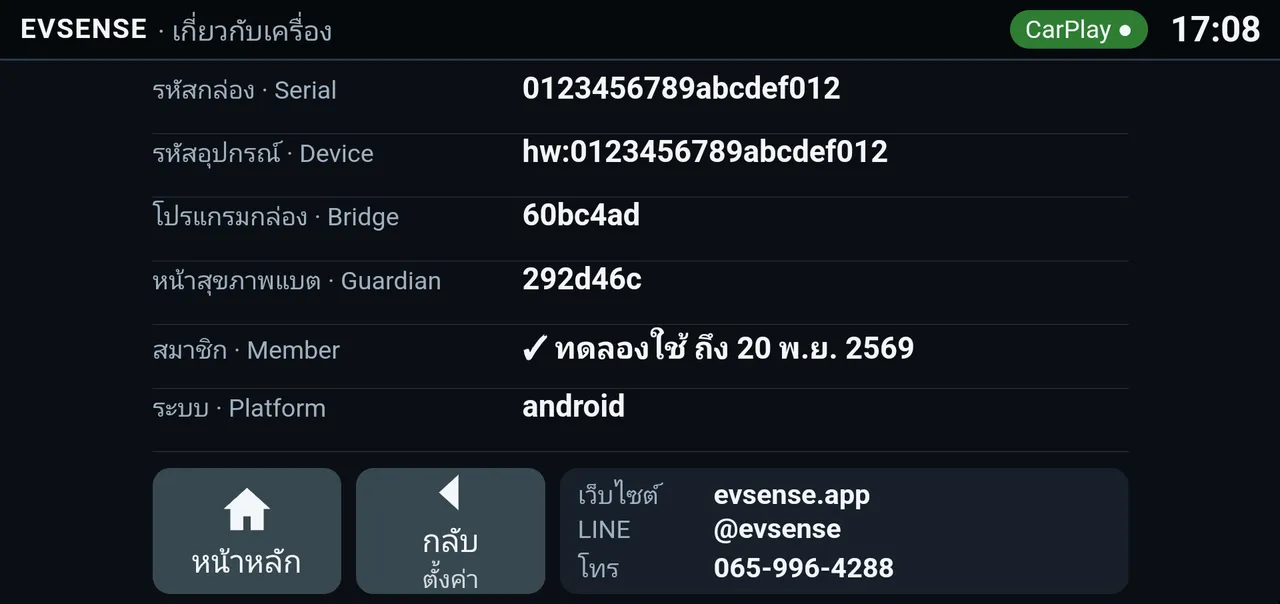
About
- Box ID · Device
- Your box's own ID. Use it when you subscribe or report a problem.
- Bridge · Guardian
- Software versions of the box and of the battery health page
- Membership
- Status and expiry date
- Contact channels
- Website · LINE · Phone
What it's for
- When you contact our team, send a photo of this screen. It helps us find the problem faster.
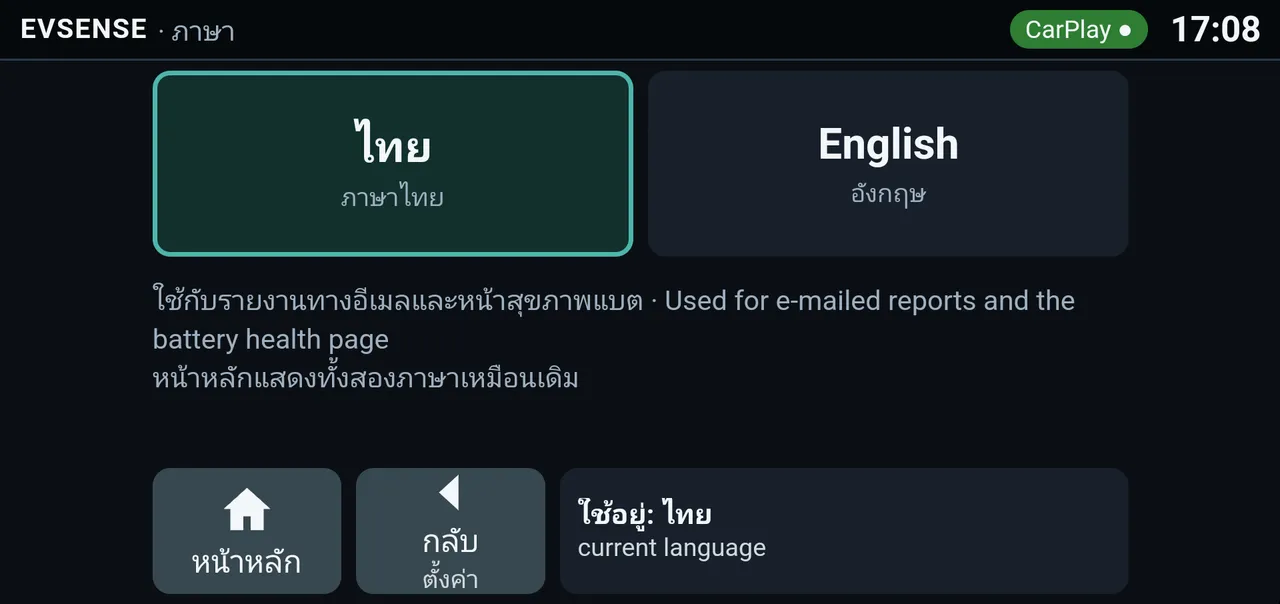
Language
Choose Thai or English. The language you choose is used for email reports and the battery health page. The home screen still shows both languages, and the gauges have their own TH/EN button.
09 · Settings
Power, plus LED and beep tests New
Go to Settings → Power
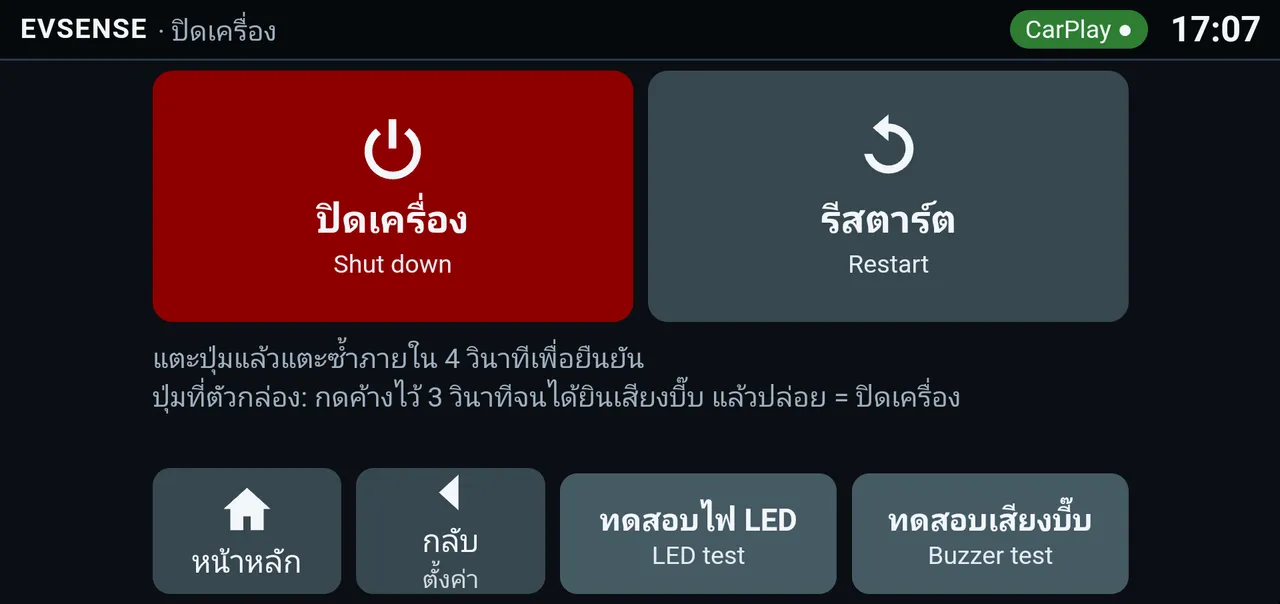
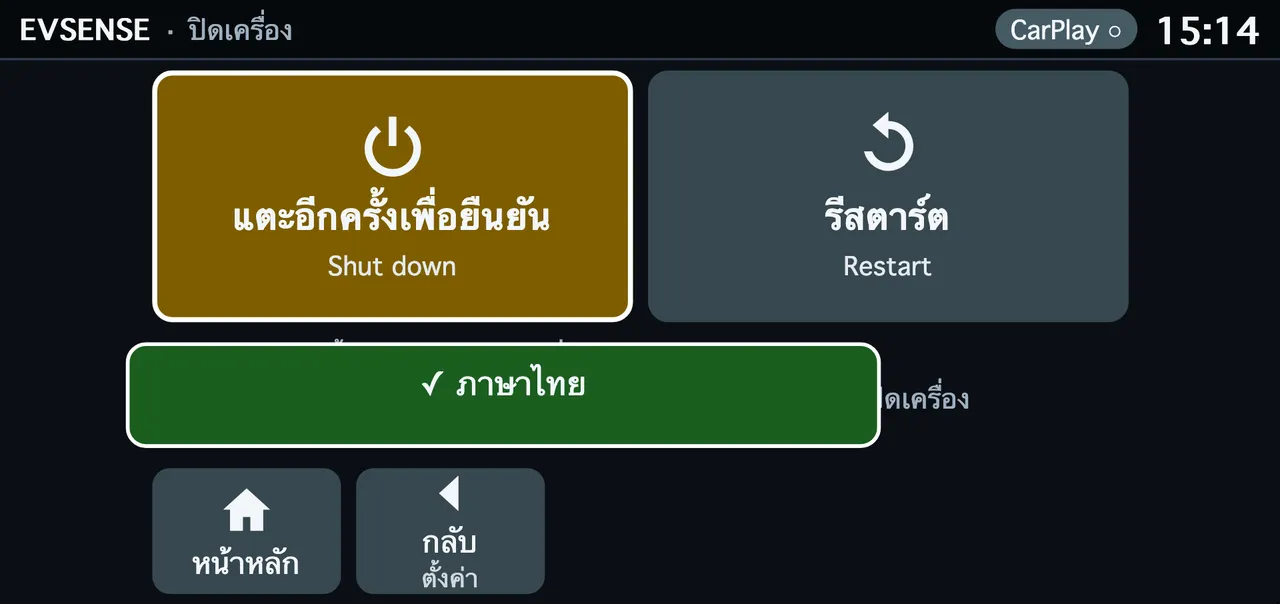

- Shut down · Restart
- On the first tap the button shows "แตะอีกครั้งเพื่อยืนยัน (tap again to confirm)". You must tap again within 4 seconds, so it cannot be pressed by mistake. After you shut down, the screen shows "Shutting down… When the screen goes dark, you can unplug."
- LED test
- Tap once and the LED on the box flashes 3 times
- Buzzer test
- Tap once and the box beeps 2 times
- Button on the box
- Hold for 3 seconds until you hear a beep, then release = shut down
What it's for
- Shut down properly before unplugging the box
- Restart if something freezes
- Check that the box's light and sound still work
10 · More
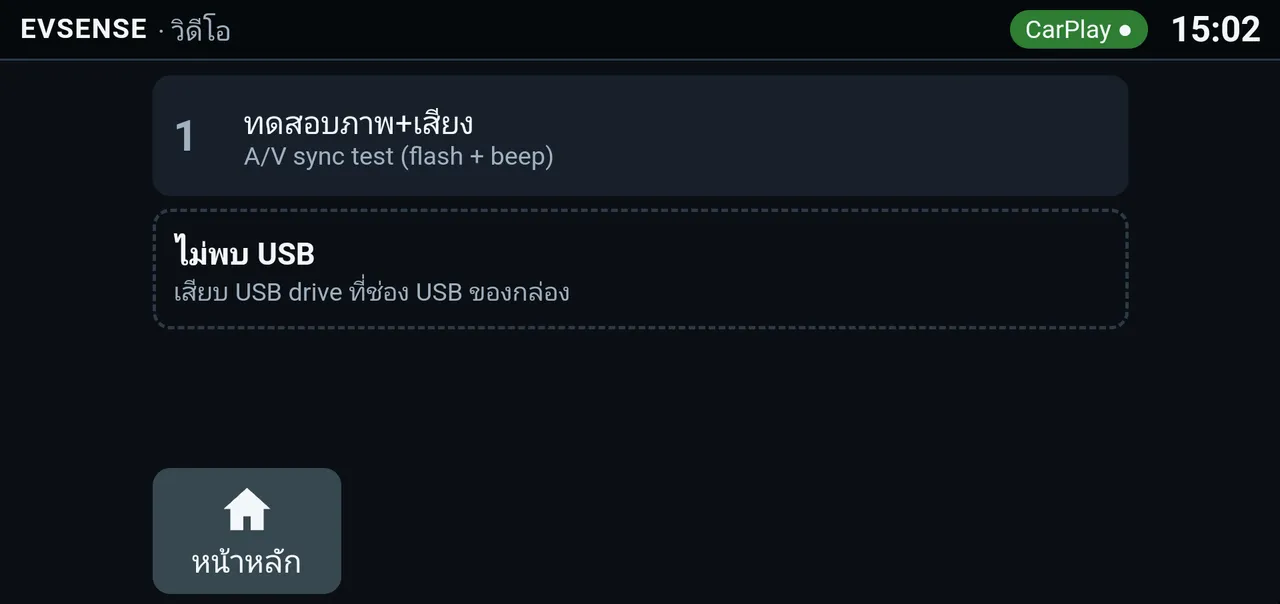
Video · Music · Touch test
Watch videos only while parked. Do not let the screen distract you while driving.
11 · Q&A
FAQ
Do I need to buy a Vgate separately?
No. Vgate already comes in the EVSense box. Cars that are not EVs use CarPlay only and do not need Vgate plugged in.
Does EVSense need an internet connection?
Not all the time. CarPlay, EV Gauge and danger-level alerts work even without internet. The internet is used to check membership, send email reports and get updates. Without internet, membership keeps working for 14 days from the last time the box reached the server.
Does EVSense control my car or change its settings?
No. EVSense only reads data. The car's main protection is still its BMS and the warning lights on the dashboard, as before.
What is battery SOH, and how accurate is it?
SOH (State of Health) is an estimate of battery health compared with when it was new. EVSense shows the value your car reports, so accuracy depends on the car model. Do not judge from a single reading. Look at the trend together with cell voltage difference and temperature.
The EVSense screen does not appear. What should I do?
Wait about 1 minute the first time, then try tapping the CarPlay icon on the car screen. Check that the box is in the USB port used for CarPlay, not a charge-only port.
I'm not getting the report emails
Make sure you pressed the confirmation link in the email (the link works for 7 days), check your spam folder, and add [email protected] to your contacts. Email reports are for members and during the trial.
If I do not renew, is my battery history lost?
No. Renew and all your data comes back. In the meantime, danger-level alerts on screen with sound keep working as normal.
Does EVSense store my location or VIN?
It does not store GPS location and does not store the vehicle identification number. It stores only battery data from the car, report recipient emails, the box ID and software version, and settings.
12 · Help
Contact us
If the screen shows a danger-level alert, take care of safety first. Do not wait for us.
- LINE
- @evsense
- Phone
- +66 65 996 4288 Hours: 09:00–17:00 (Thailand time)
- [email protected] Replies to report emails also reach our team
- Website
- evsense.appSubscribe: evsense.app/subscribe · Contact and support

Please note
- EV Guardian helps you monitor the battery and sends alerts. It is not a certified safety device and cannot promise to catch every problem.
- The car's main protection is still its BMS and the warning lights on the dashboard. If a warning light comes on, follow the car's owner's manual first.
- EVSense reports are not a battery health certificate. The thresholds on the battery health page are engineering reference values, not values from the manufacturer.
- EVSense is not affiliated with Apple Inc. "Apple CarPlay" is used only to explain that the box works through the CarPlay system already in your head unit.
Screenshots: Real carBYD Dolphin, 25 Oct 2026 · Current buildTest box with the latest software · Mock-upStates that cannot be created on a real car · Personal data is blurred or replaced with sample values